



How to register, activate, and set up LAUNCH X-PROG5 (G5) on your PC. Follow this step-by-step guide to install the X-431 ECU Clone software, activate your device, and enable the chip read/write function.
What You Need
LAUNCH G5
Windows PC with internet access
A valid email address
X-PROG5 activation code (included in the package)
1. Download the X-431 ECU Clone Software
Visit the official LAUNCH website www.en.cnlaunch.com

Follow these steps:
Click Service.
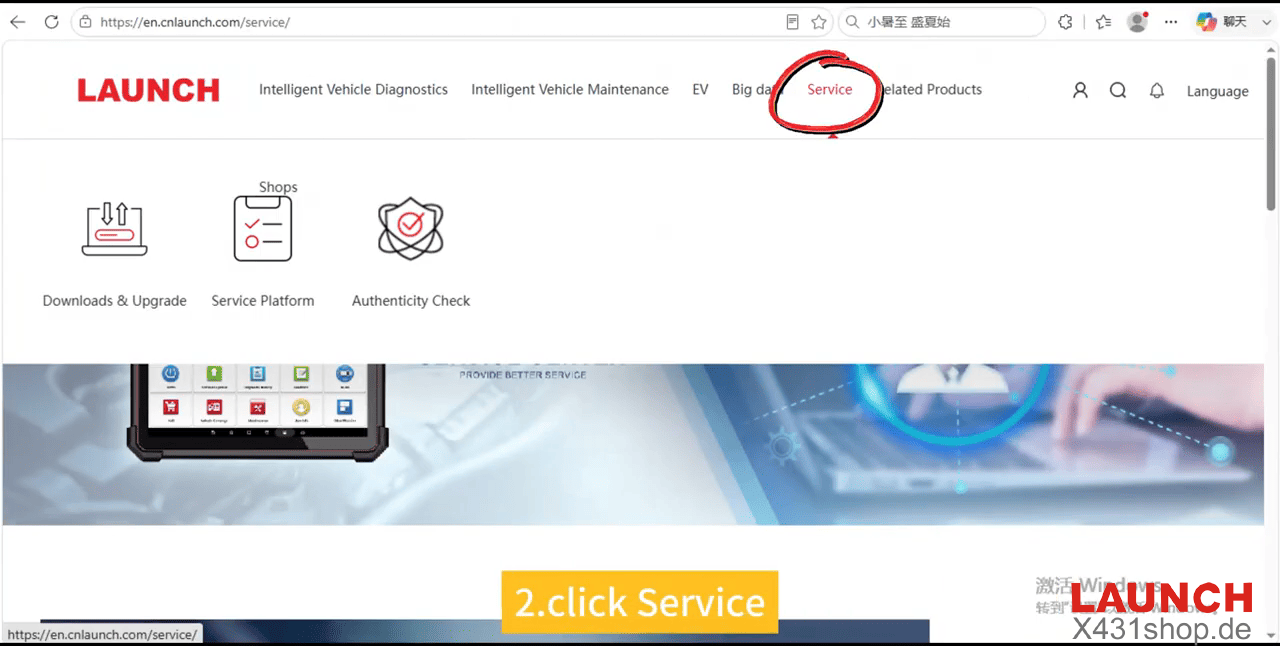
Select Download & Upgrade.
Open the software download page.
Locate X-431 ECU Clone.
Click Download.
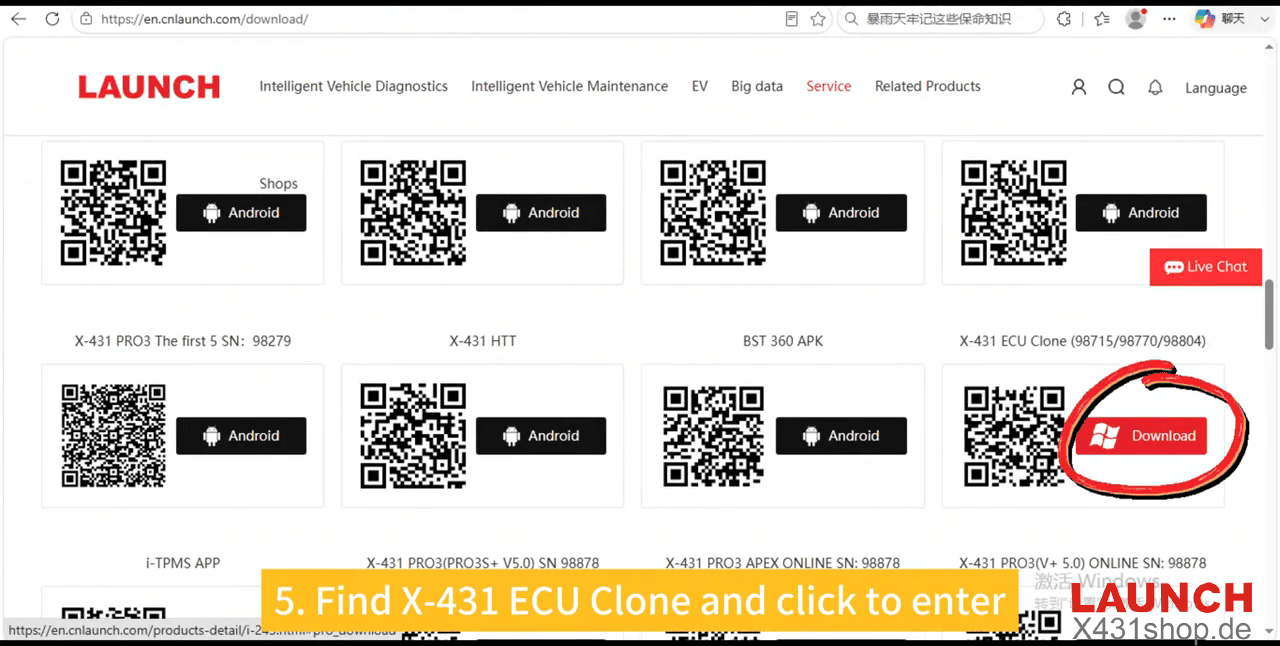
Choose your preferred language version.
Install the software after downloading.
2. Connect the X-PROG5 to Your PC
Connect the LAUNCH X-PROG5 to your computer.
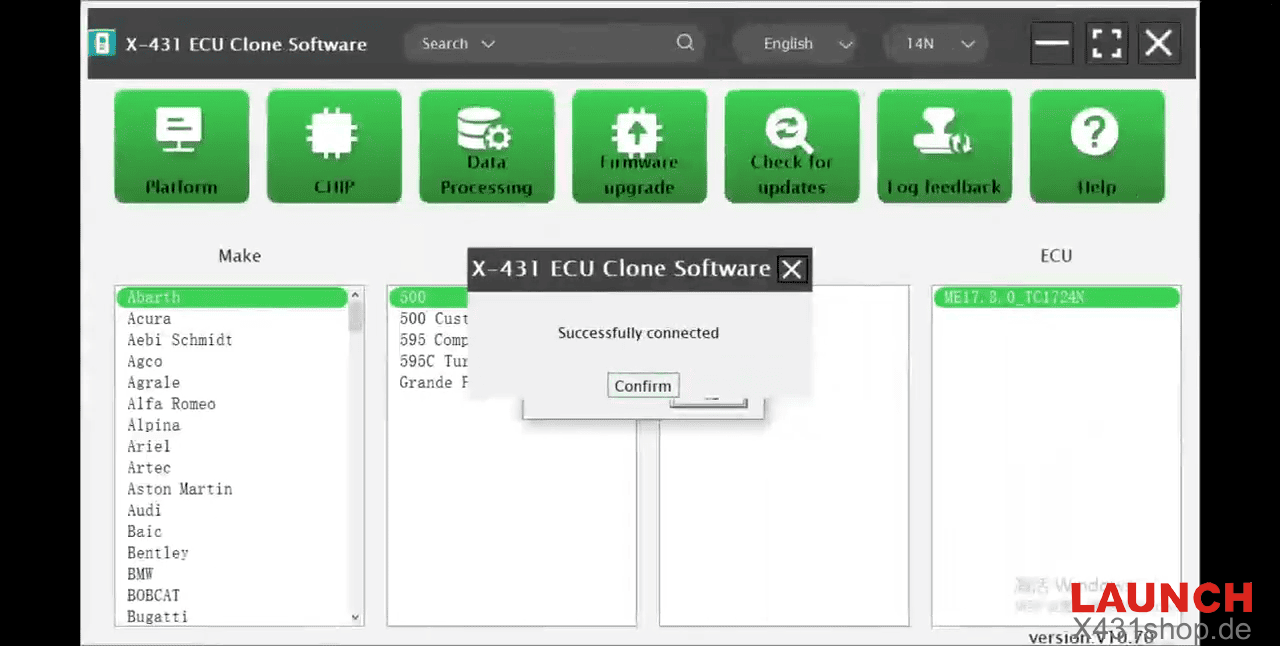
Launch the X-431 ECU Clone software.
When prompted, click Confirm to continue.
3. Register and Log In
The software requires account verification before activation.
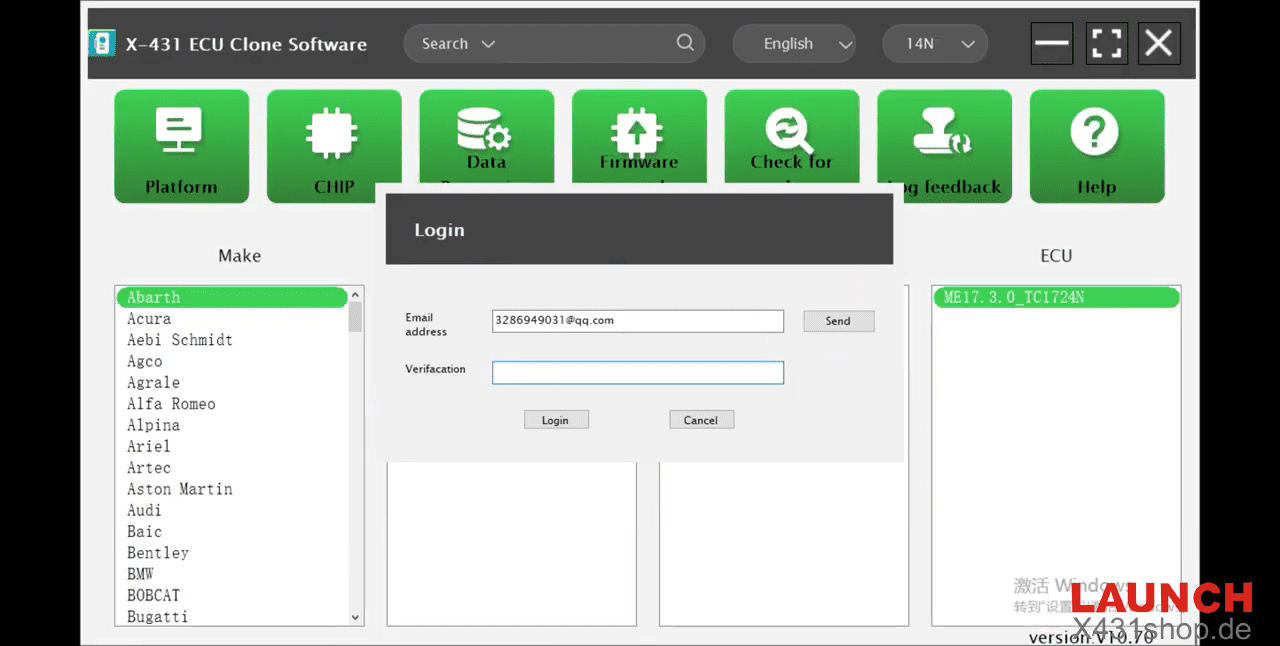
Enter an email address that can receive verification emails.
Click Send.
Enter the verification code received by email.
Click Login.
After logging in successfully, click OK.
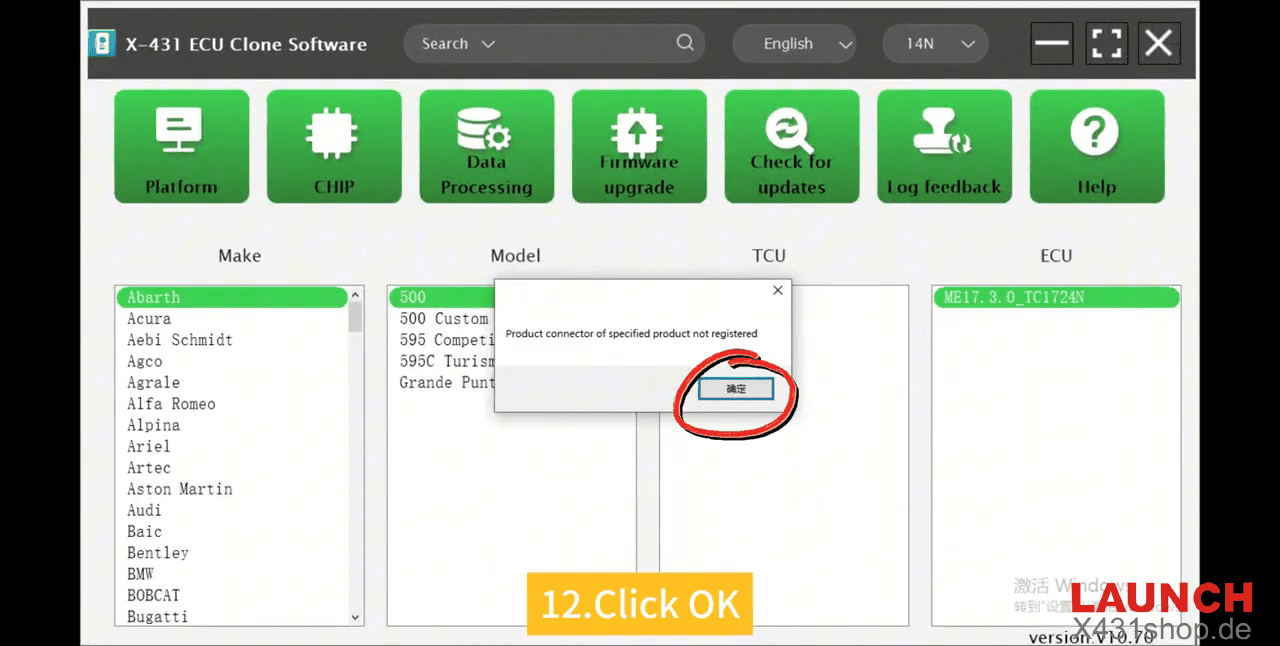
4. Activate the Device
Now it’s time to activate your programmer.
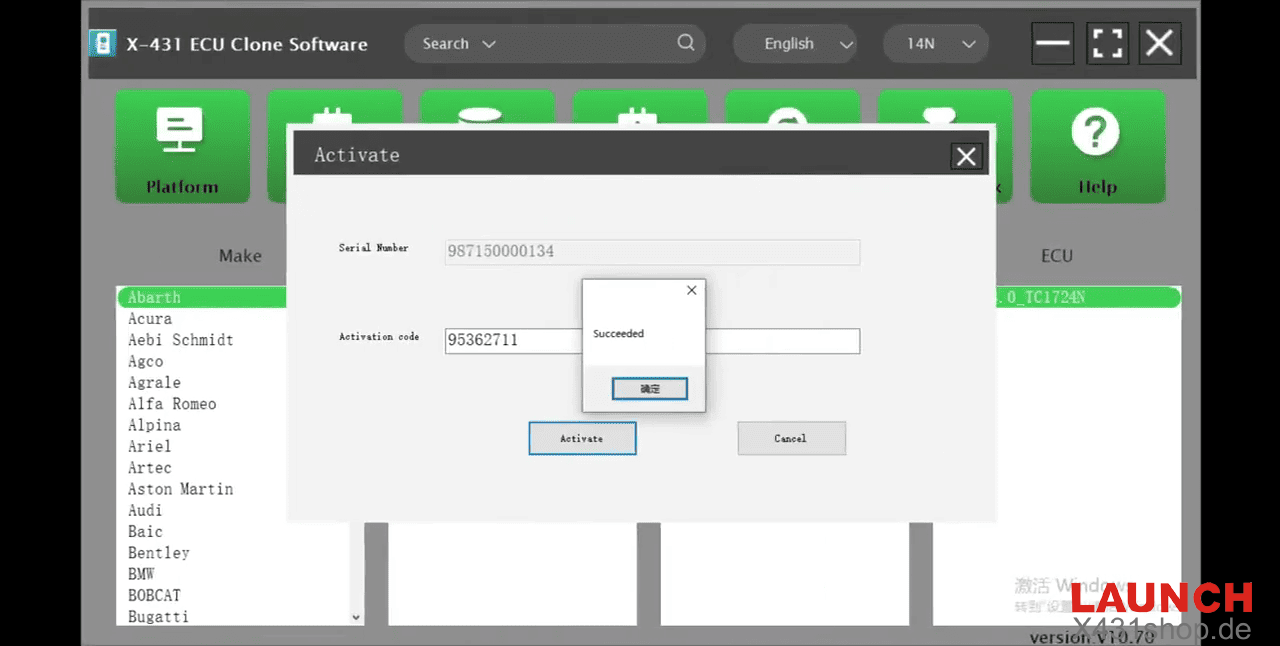
Click Activate.
Enter the activation code supplied with the device.
Click Activate again.
After successful activation, your X-PROG5 is ready for use.
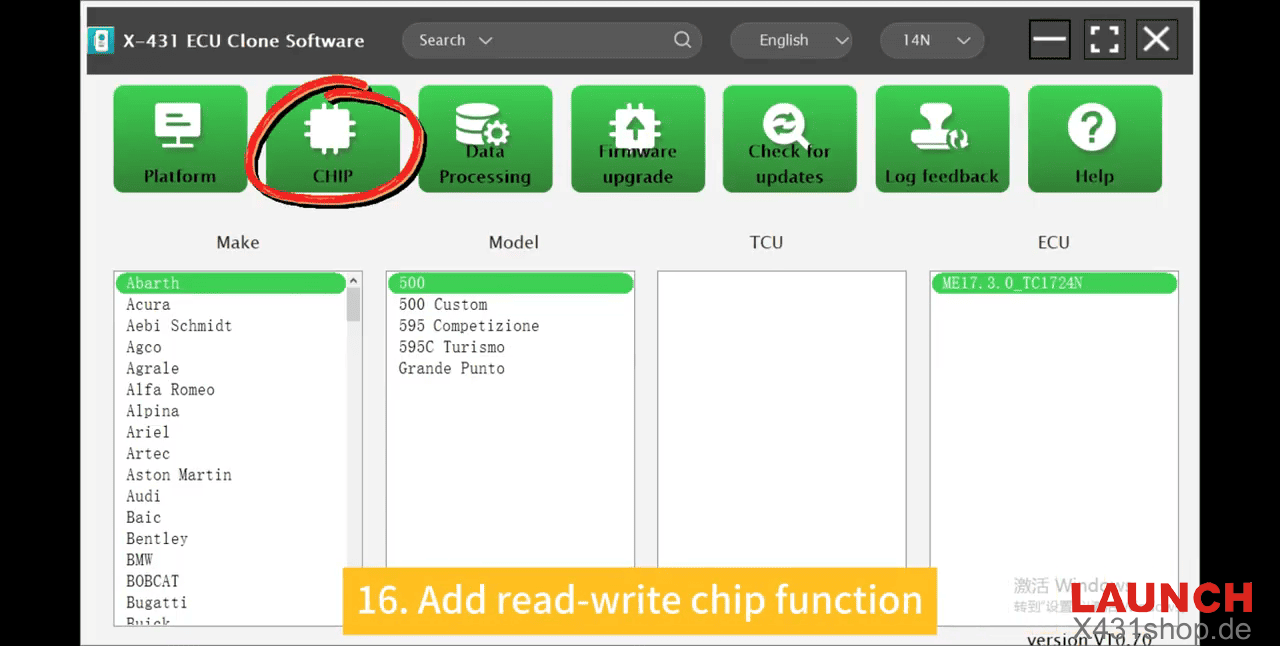
5. Enable the Chip Read/Write Function
Once activation is complete, the software automatically enables the Chip Read/Write function, allowing you to perform supported chip programming and ECU data operations.