



If you need to verify whether the OBD warning lamp on a 2021 Genlyon C6 is operating correctly, the Launch X431 PAD5 LINK HD offers a built-in active test that allows you to control the indicator directly from the diagnostic menu.
This guide explains how to access the OBD Light Test function and verify the operation of the dashboard indicator.
Note:
Launch X431 PAD5 LINK HD refers to Launch X431 PAD V Elite with SmartLink C VCI and HD Truck Software Authorization Pack.
The same procedure is also supported by Launch X431 PRO3 LINK HD (X431 V+ SmartLink HD).
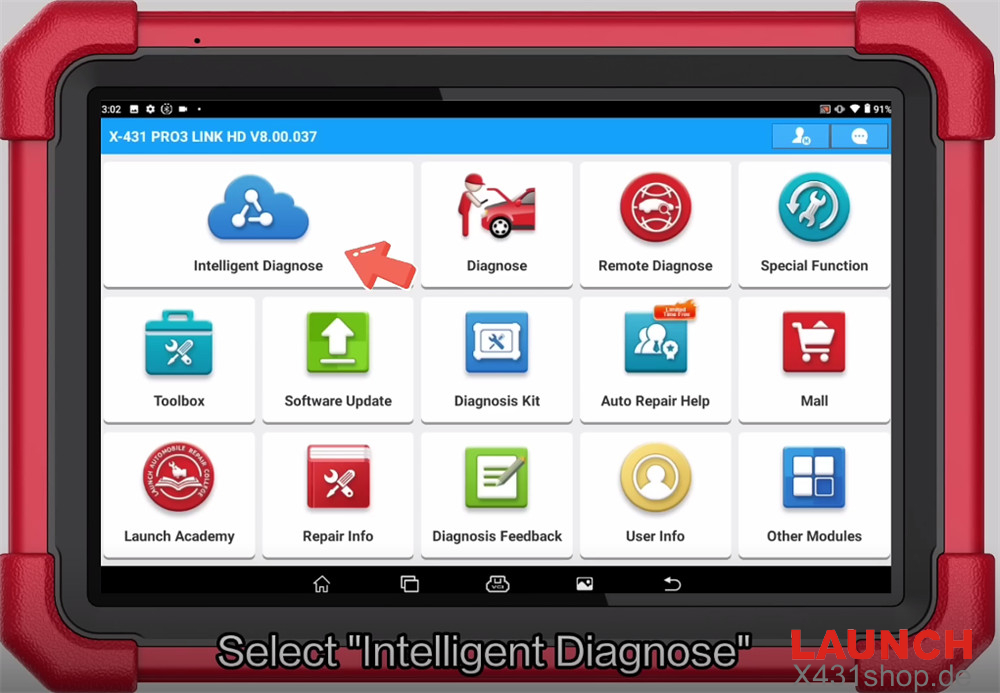
1. Start Intelligent Diagnosis
Launch the diagnostic software and select Intelligent Diagnose.
2. Scan All Vehicle Systems
Run a complete system scan.
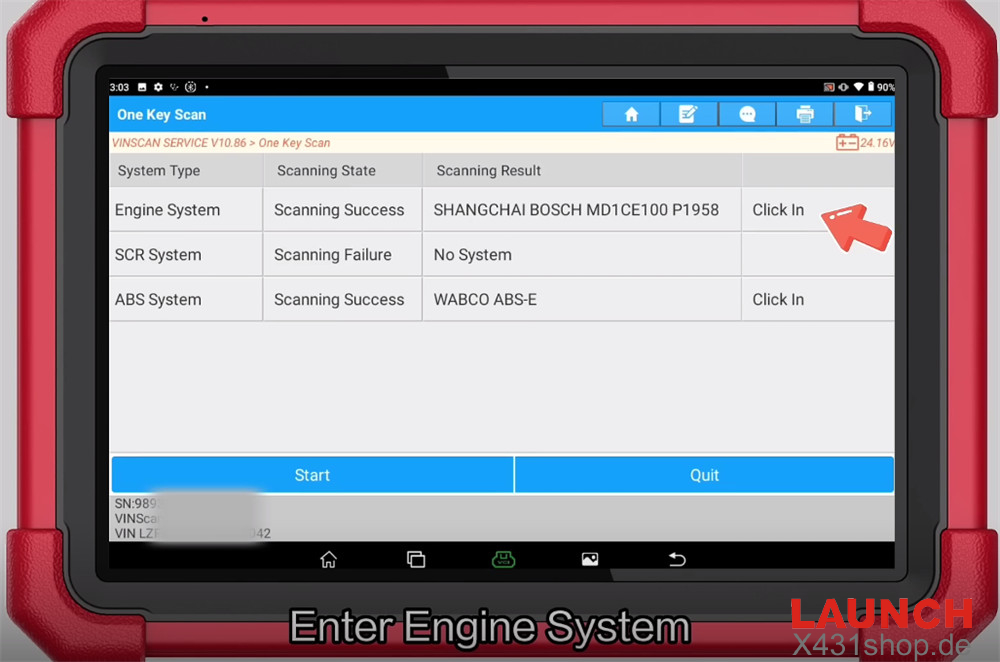
After the scan is finished, locate the Engine System and tap Click In to continue.
3. Confirm Vehicle Information
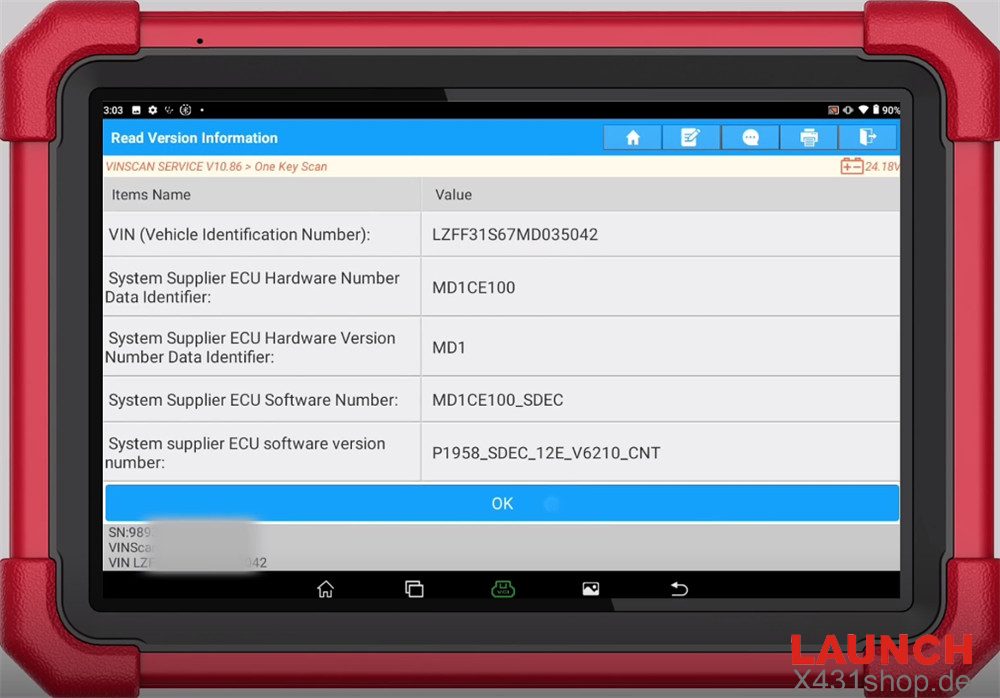
Verify that the detected vehicle information is correct before proceeding.
4. Enter the OBD Light Test
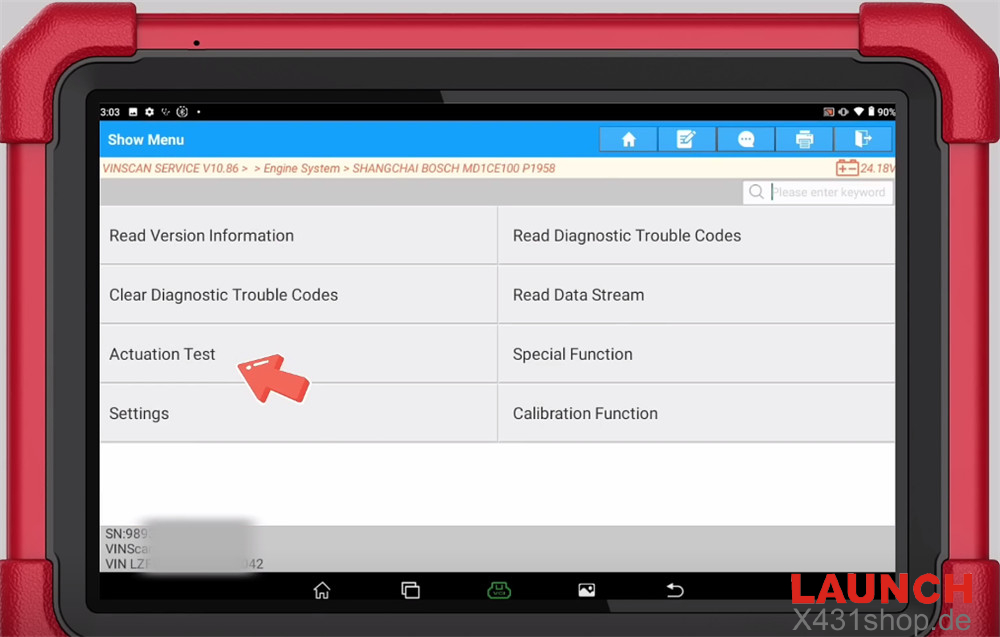
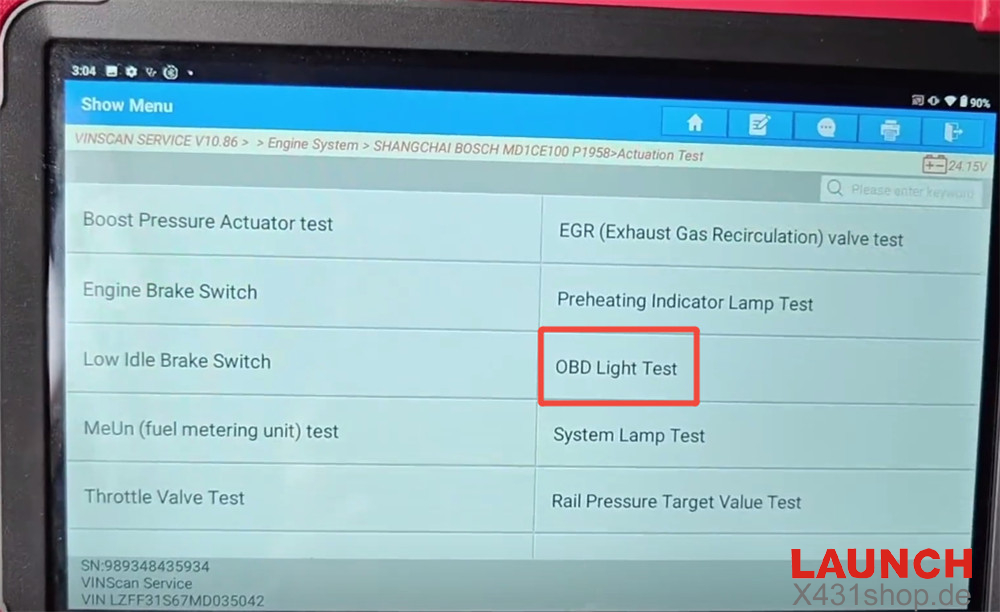
Navigate through the following menu:
Actuation Test → OBD Light Test
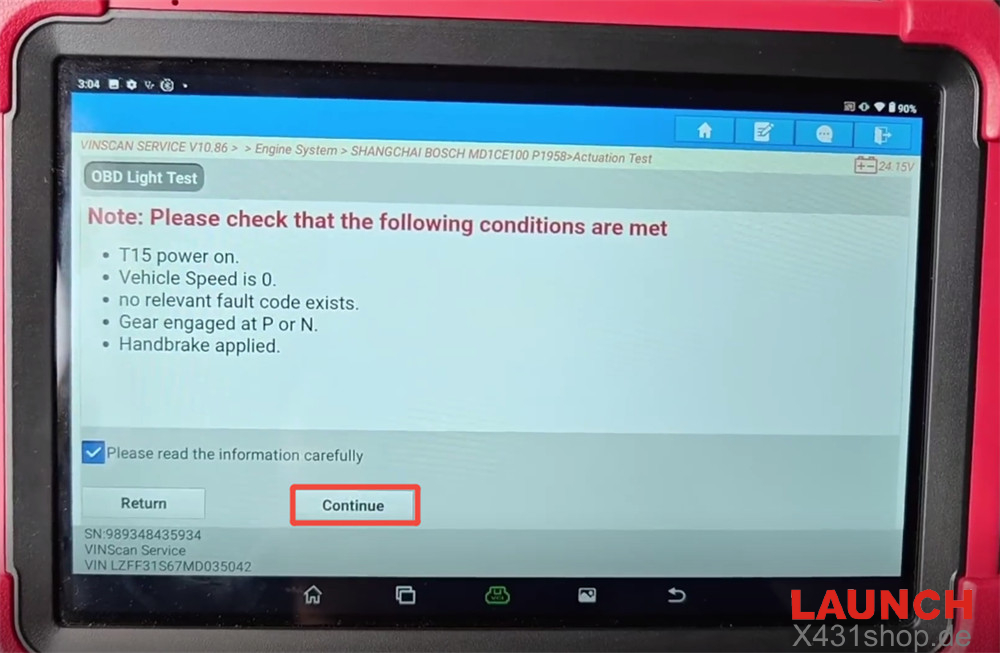
5. Verify Operating Conditions
Before the function can be executed, make sure the following conditions are satisfied:
- Ignition (T15) is switched ON
- Vehicle speed is 0 km/h
- No related fault codes are present
- Transmission is in P or N
- Parking brake is applied
- Once all requirements are met, tap Continue.
6. Turn the OBD Indicator ON
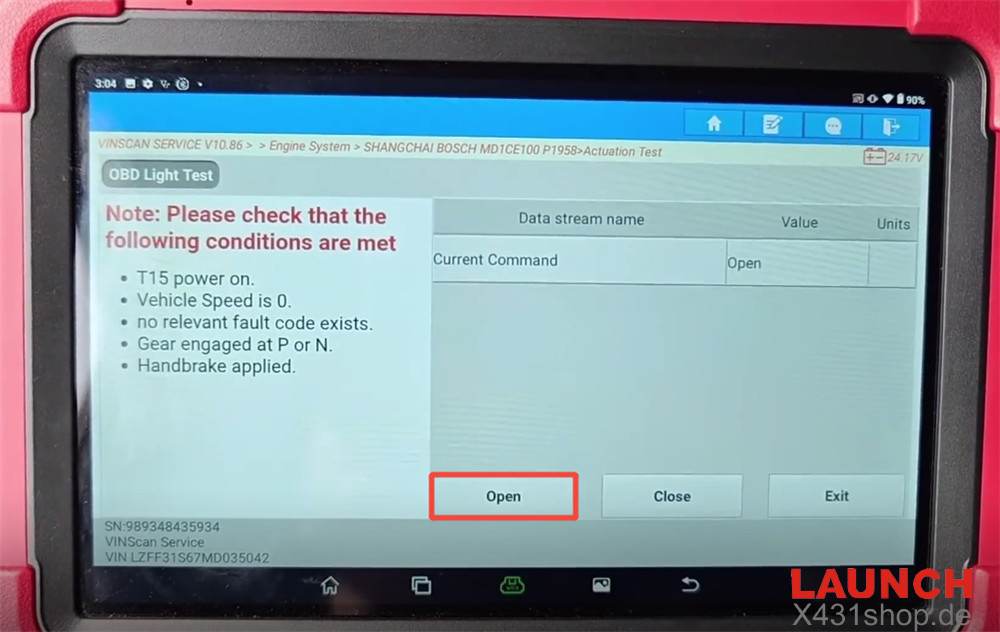
Select Open.
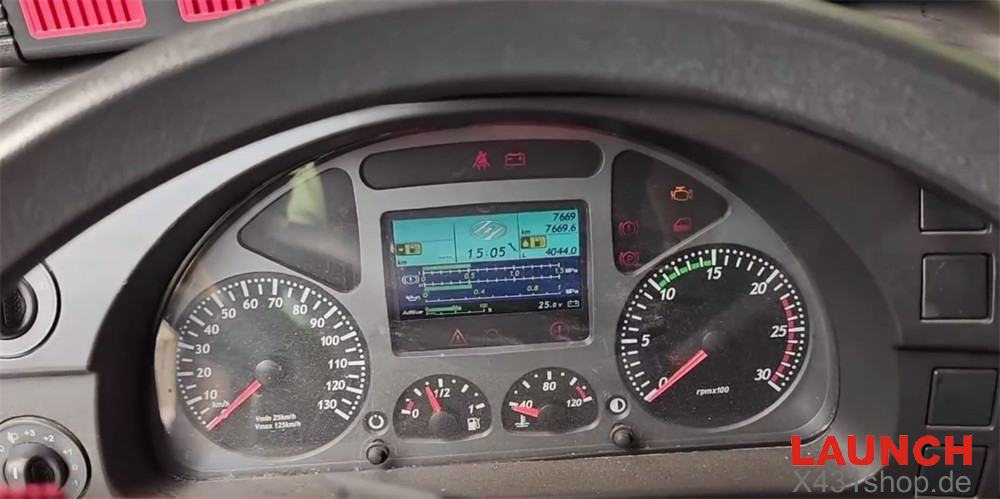
The current command status will change to Open, and the OBD indicator lamp should illuminate accordingly.
7. Turn the OBD Indicator OFF
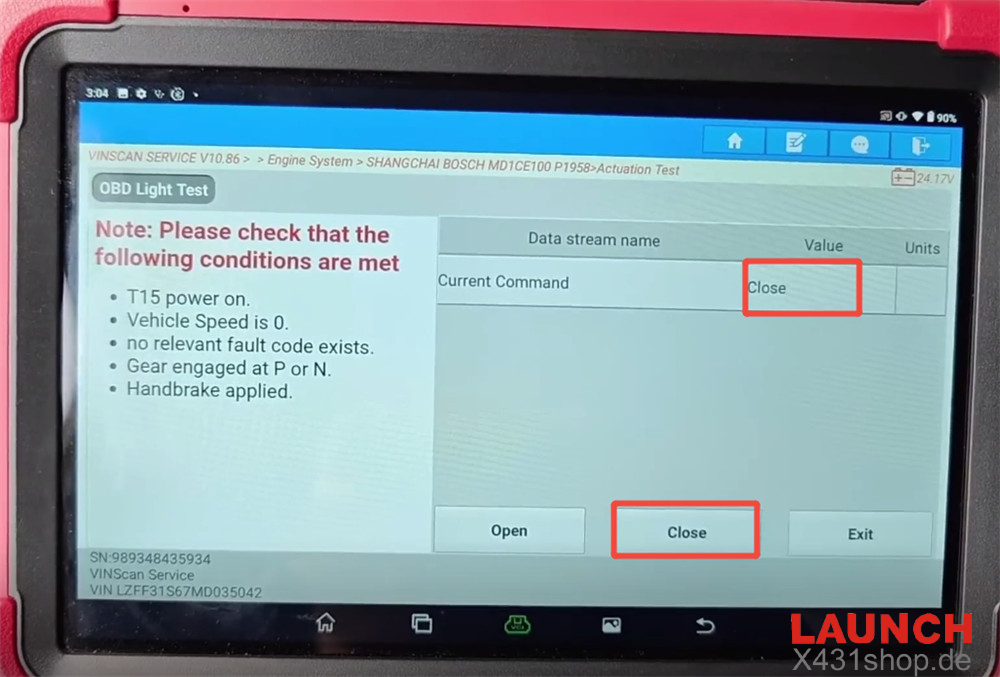
Select Close.
The command status will switch to Close, and the OBD indicator lamp should turn off.
8. Test Complete
The OBD indicator light has now been successfully tested.
This function helps technicians quickly verify dashboard indicator operation and confirm whether the OBD warning lamp responds correctly during diagnostic procedures.
Video guide