

This guide explains how to submit APP diagnostic logs from your Launch X431 tablet to the LAUNCH technical support team. The logs provide vital data to help resolve software or connection issues efficiently.
For example: X-431 PAD9 LINK
Open the X-431 PAD9 LINK APP and check the main screen for the “Info Center” or “User Info” section.
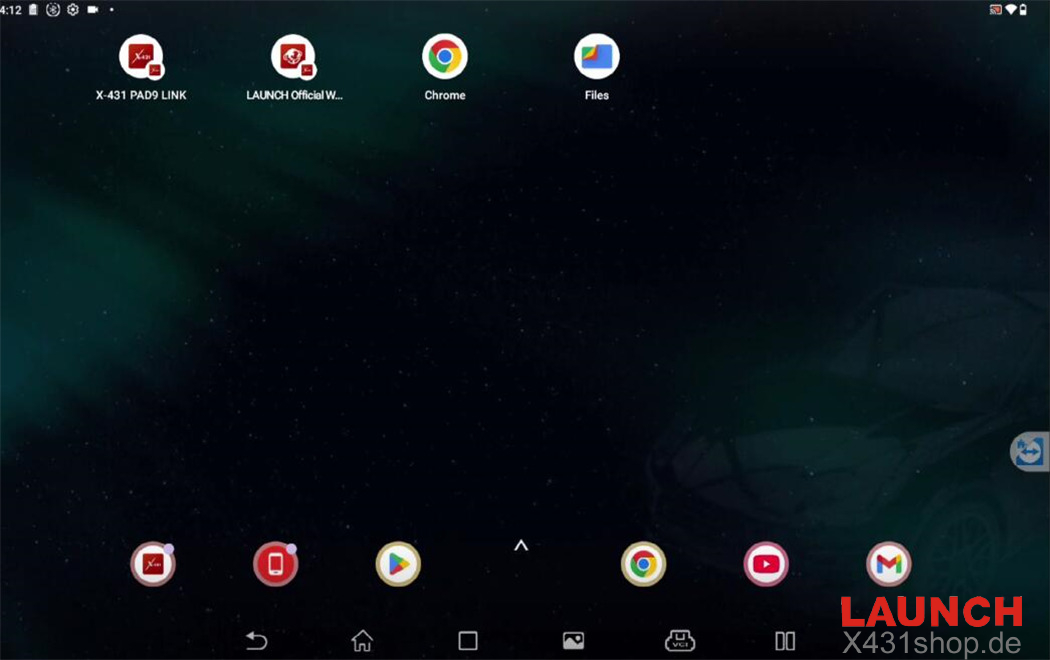
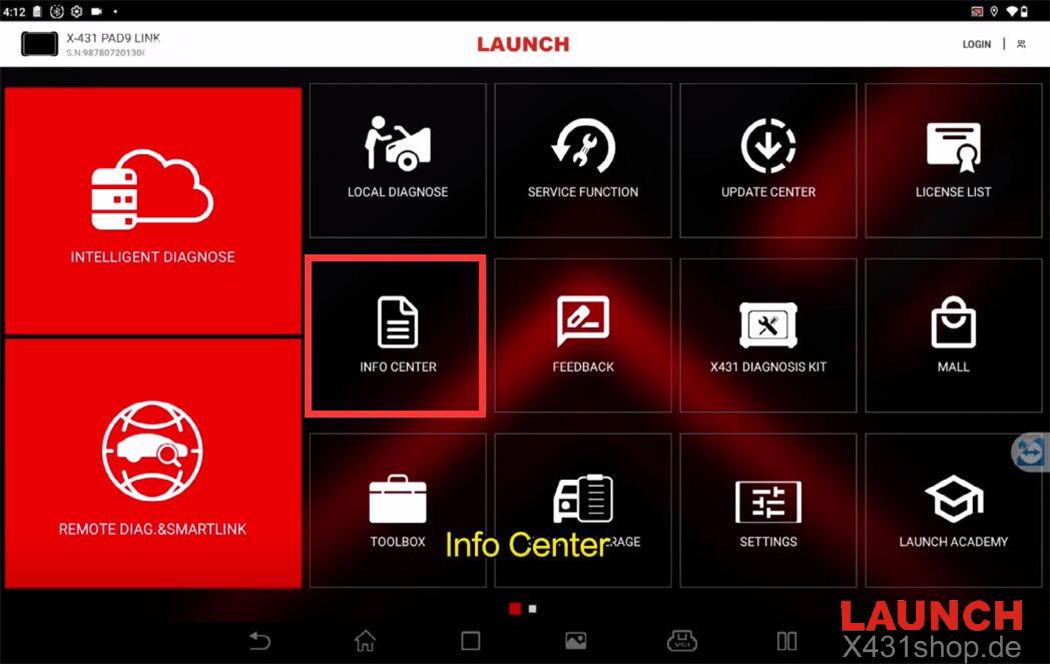
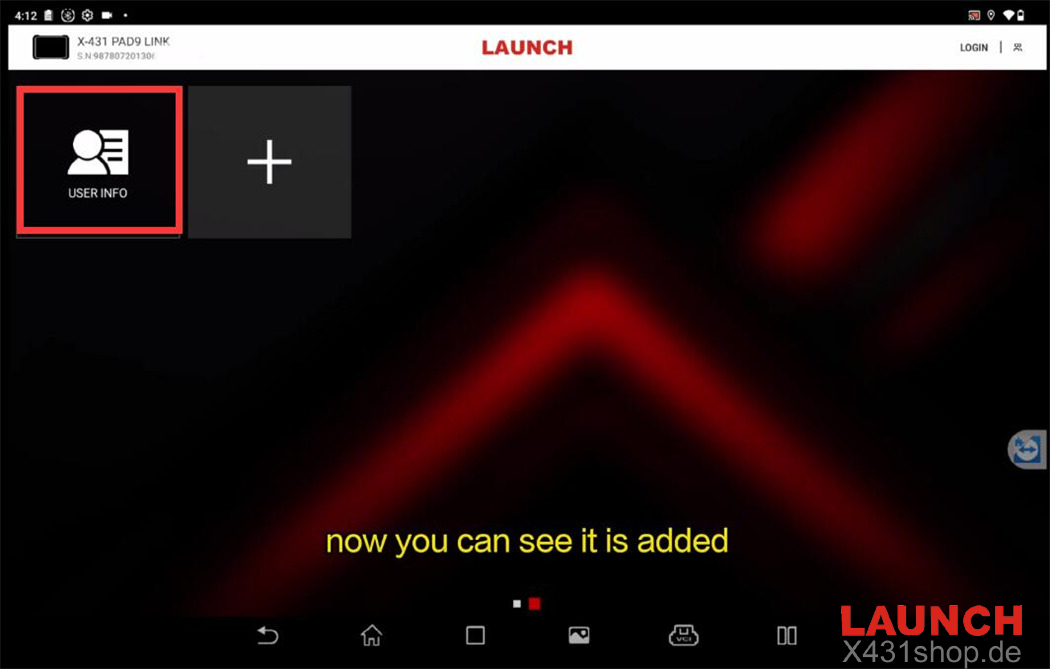
If it’s not visible, tap the “Add” icon to add the “USER INFO” shortcut to your homepage.
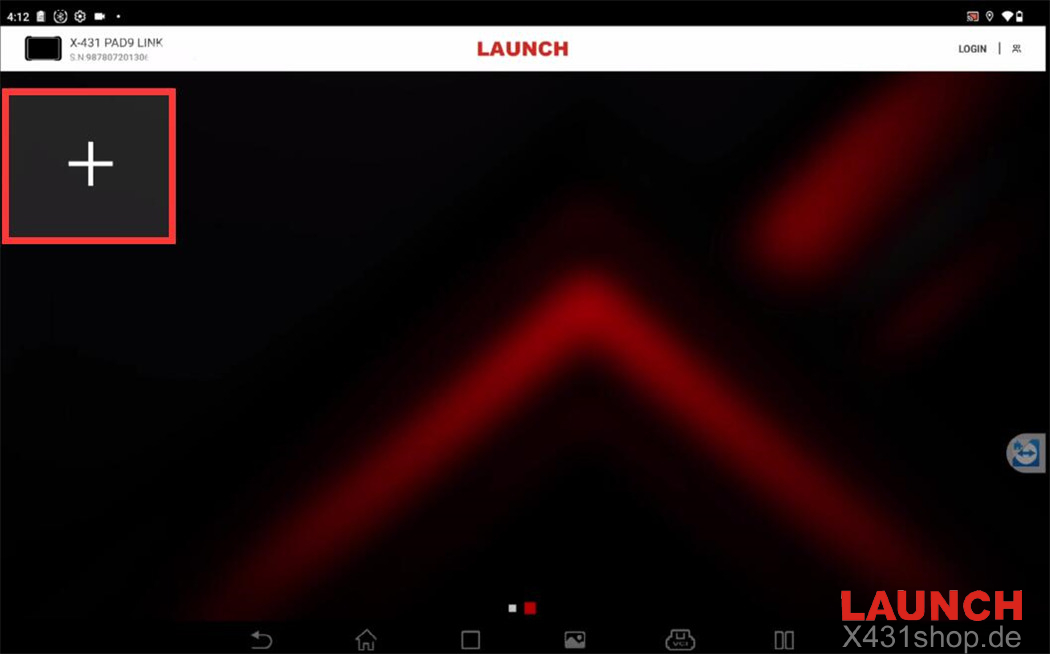
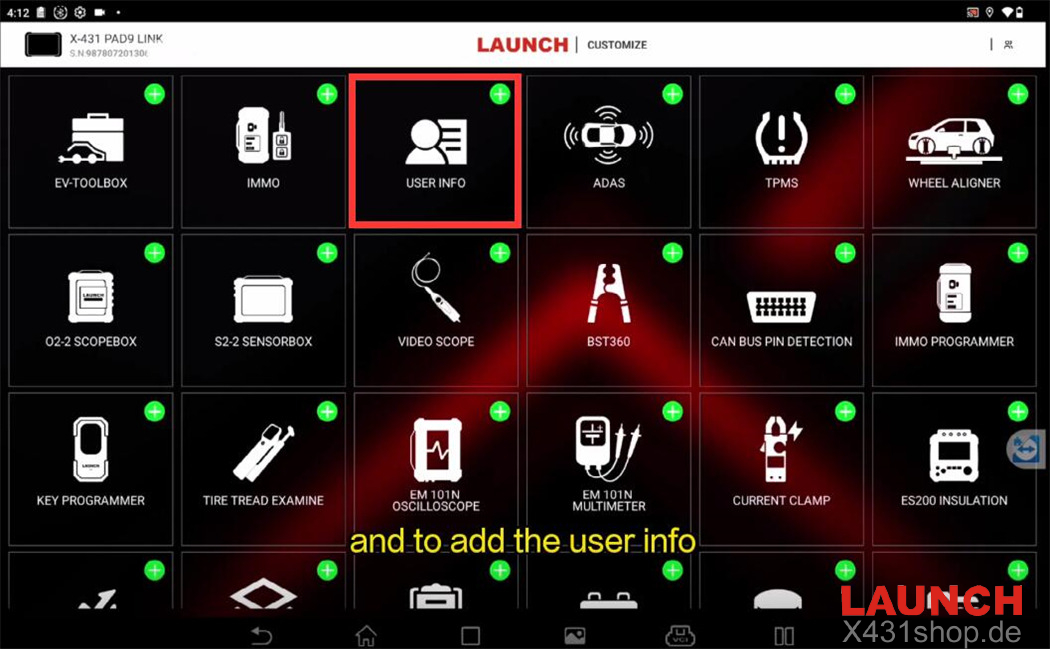
It will appear on the second page.
Tap the User Info icon to access options like VCI, Activate VCI, My Order, Subscription Renewal Card, Software Status, Profile, Set/Reset password, and Certificate Management.
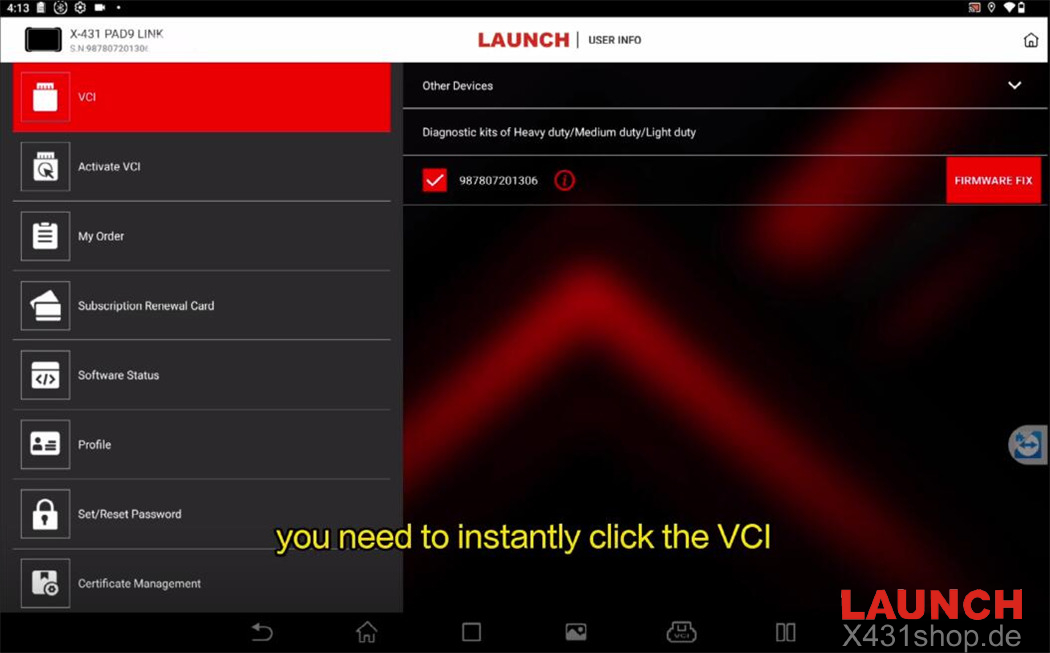
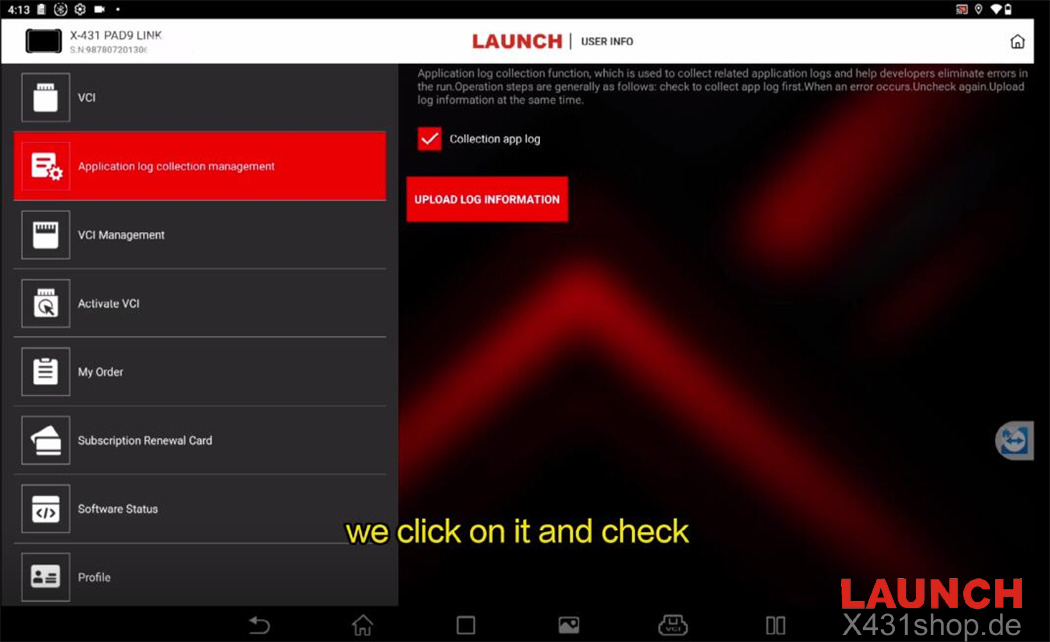
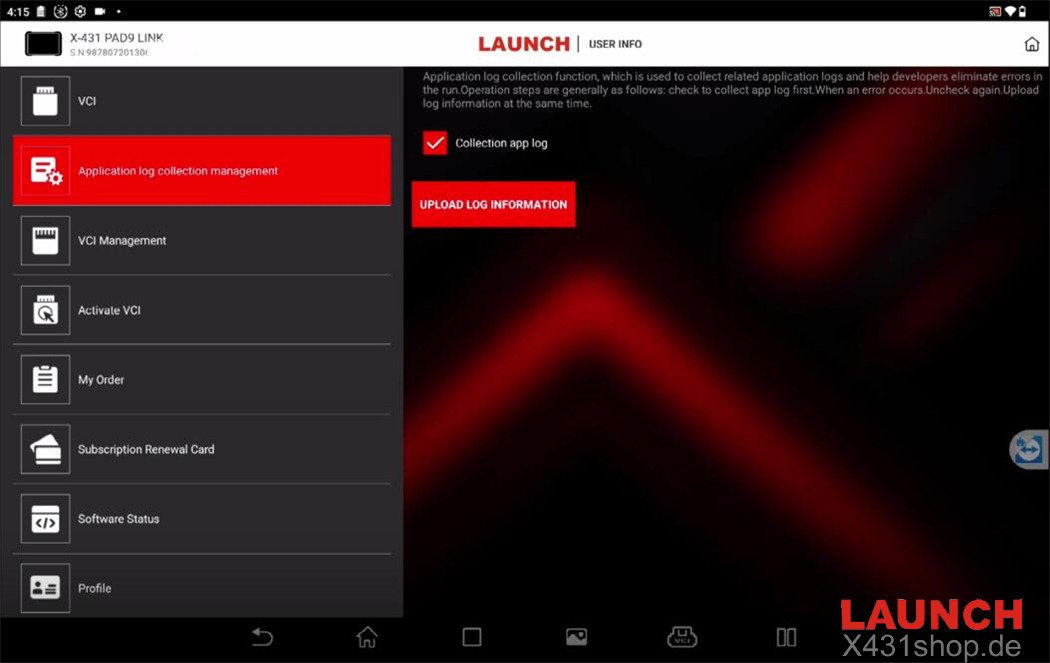
The Application Log Collection menu is hidden by default. To reveal it, quickly tap the VCI icon five times.
Open the menu and make sure “Collection app log” is enabled (checked).
Return to the main menu of X431 tool and perform your diagnosis using Intelligent Diagnose or Local Diagnose on the vehicle.
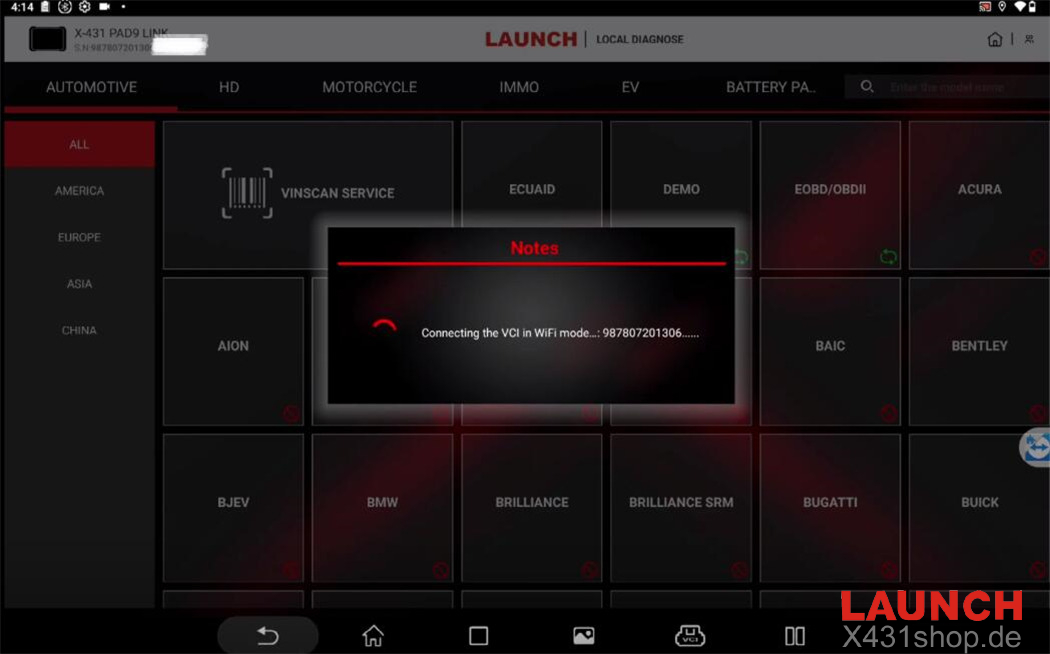
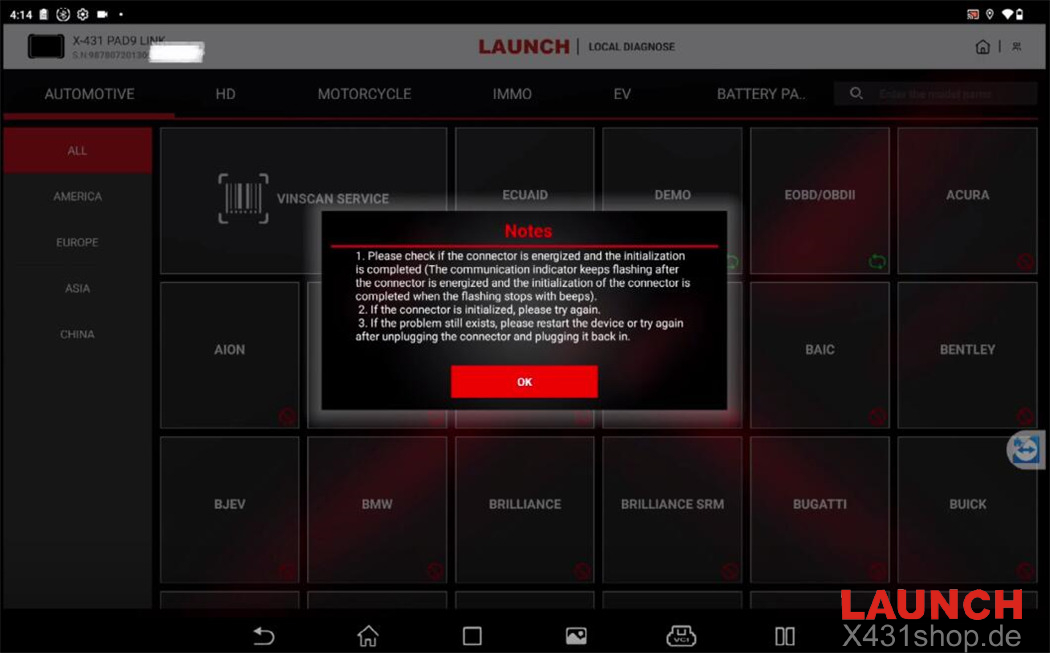
After finishing the diagnostic session, go back to the homepage and re-enter User Info. If the log menu has disappeared, tap the VCI icon five times again.
Then select “Upload Information” to send the logs. The LAUNCH engineering team will review them for troubleshooting.
Video guide: