





This tutorial explains how to purchase and activate the ECU Flashing function on the Launch X431 PRO3 LINK HD (X431 V+ SmartLink HD) diagnostic tool.
By following the steps below, users can quickly complete the activation and start performing ECU online programming.
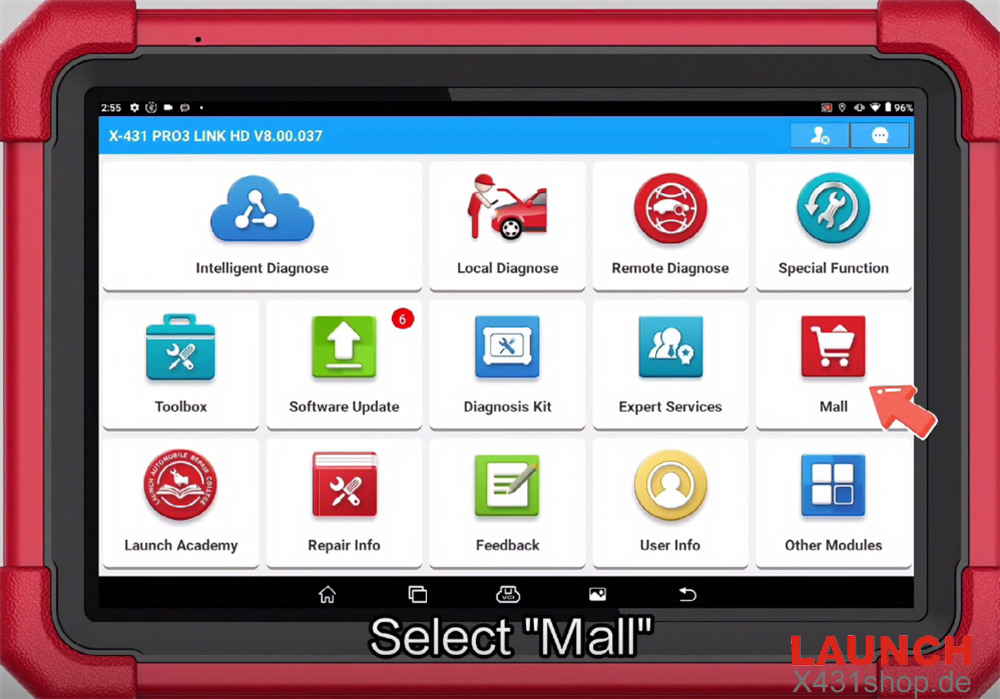
Step 1: Enter the Software Store
Open the device and navigate through the following menu:
Mall → Software Store → Commercial Vehicle → ECU Flash
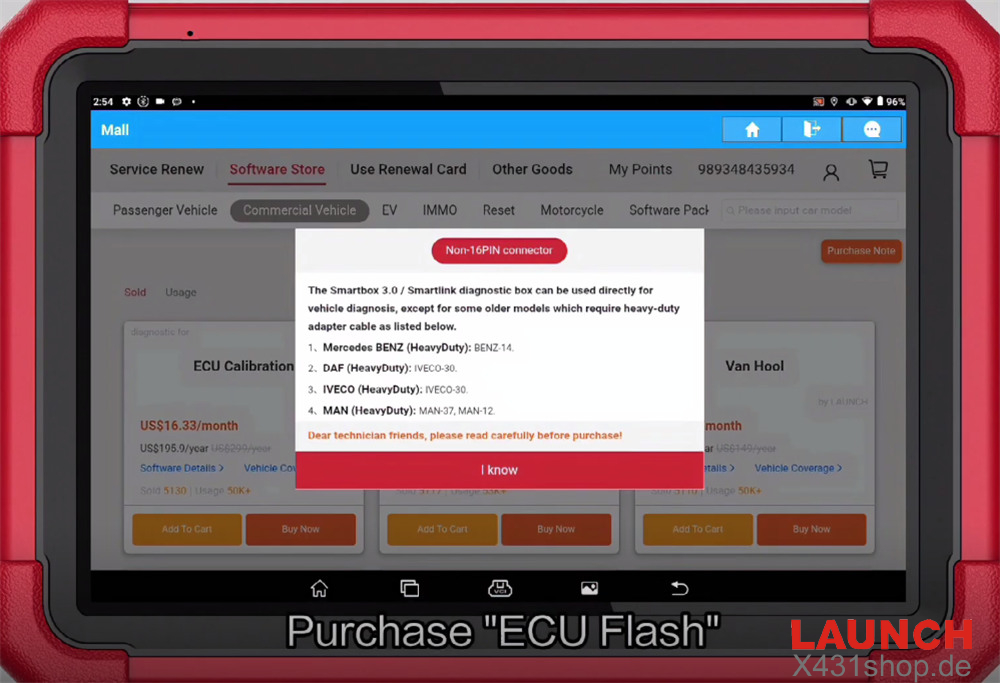
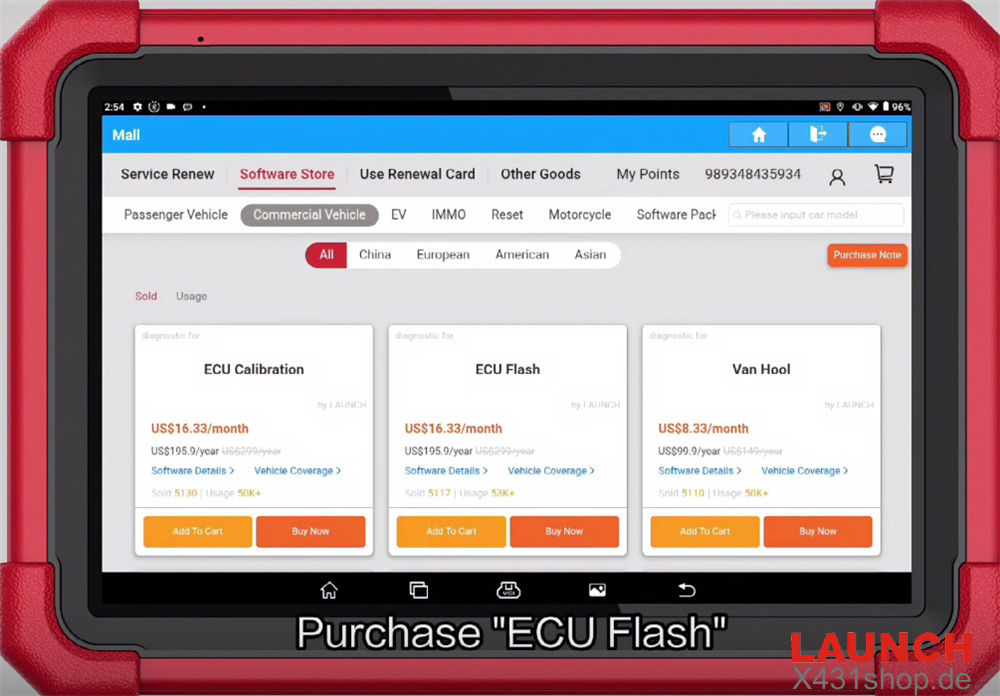
Step 2: Select a Subscription Plan
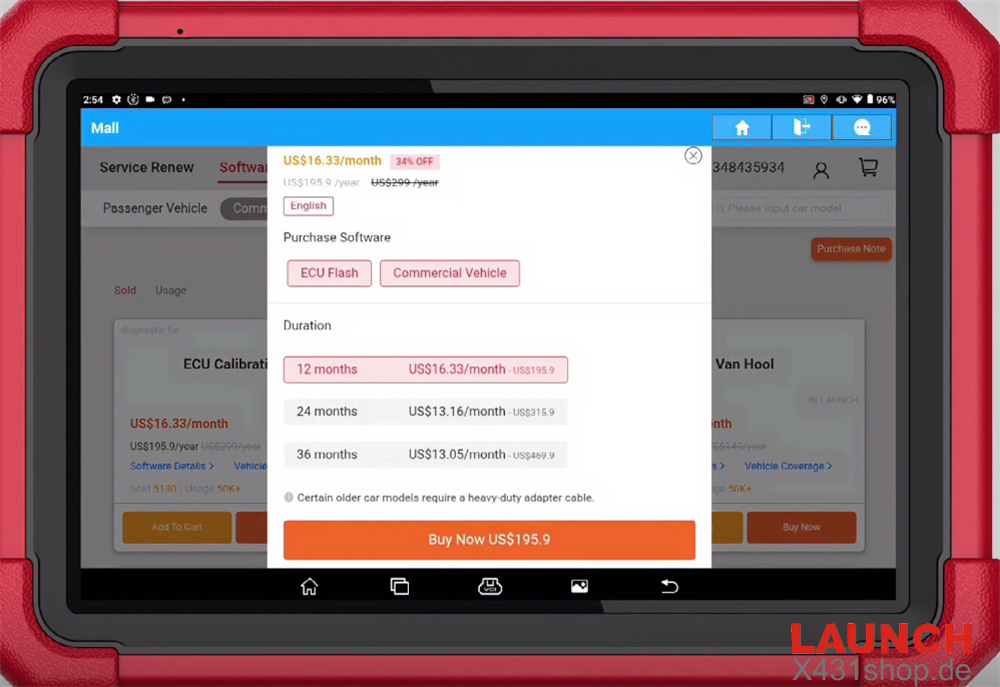
Three subscription options are available:
12 Months
24 Months
36 Months
Choose the plan that suits your needs, then proceed to confirm the purchase.
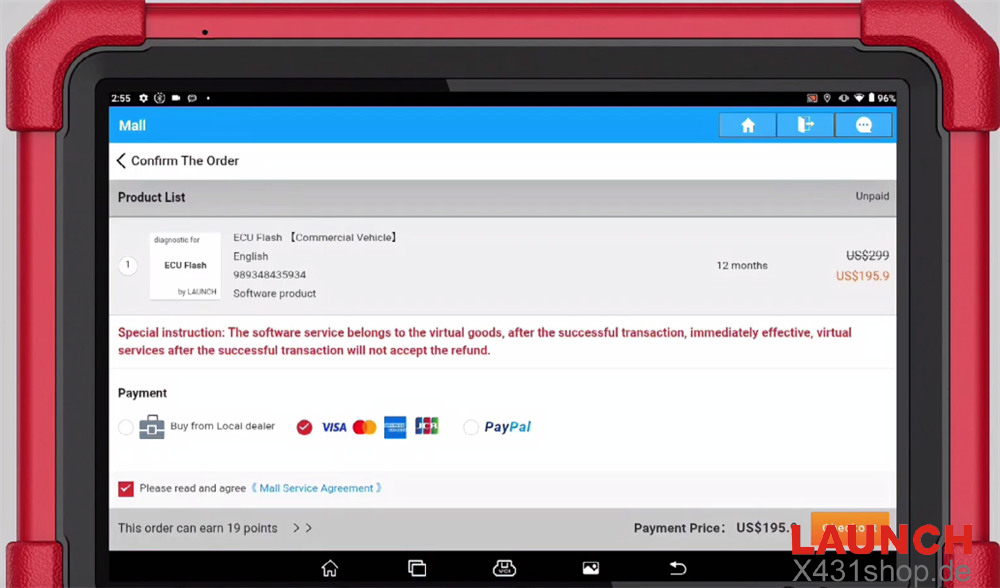
Step 3: Download the Purchased Software
Once the purchase is completed successfully, download the ECU Flash software.
Next:
Exit the X431 APP.
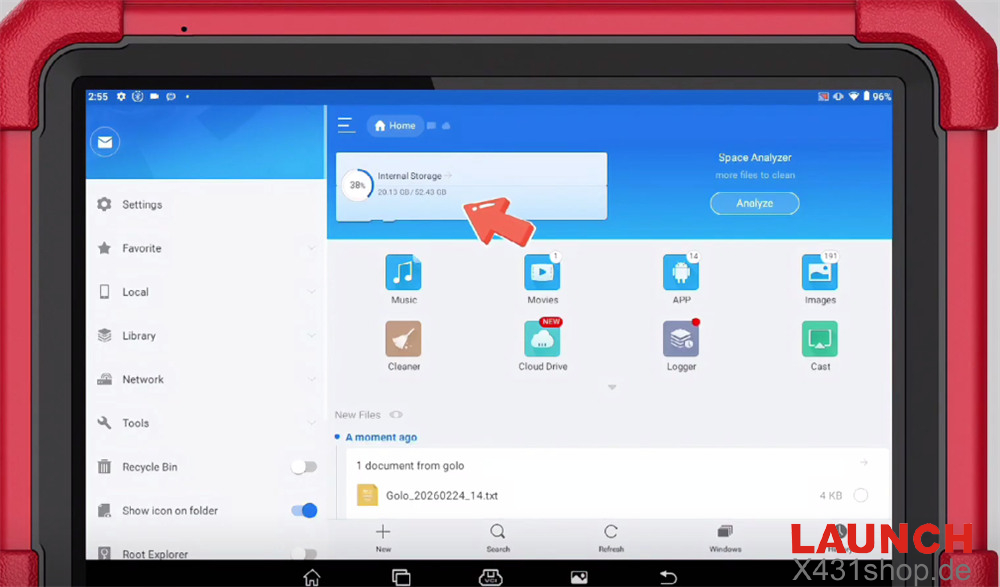
Open the ES File Manager (ES Folder).
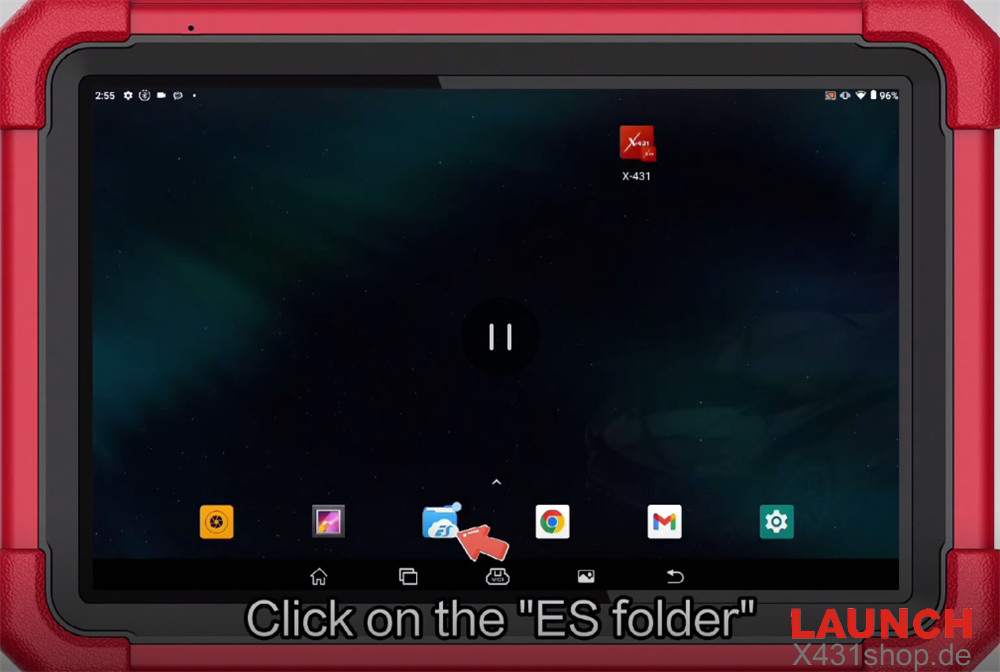
Step 4: Locate the Configuration File
Navigate to the following directory:
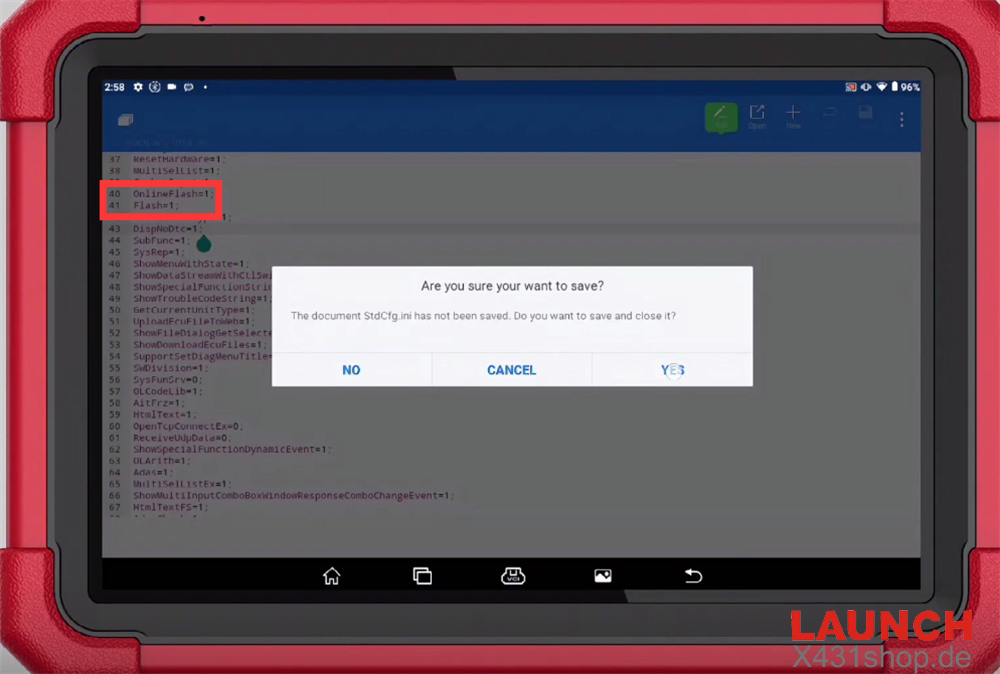
/cnlaunch/X431Pro3S/assets/StdCfg.ini
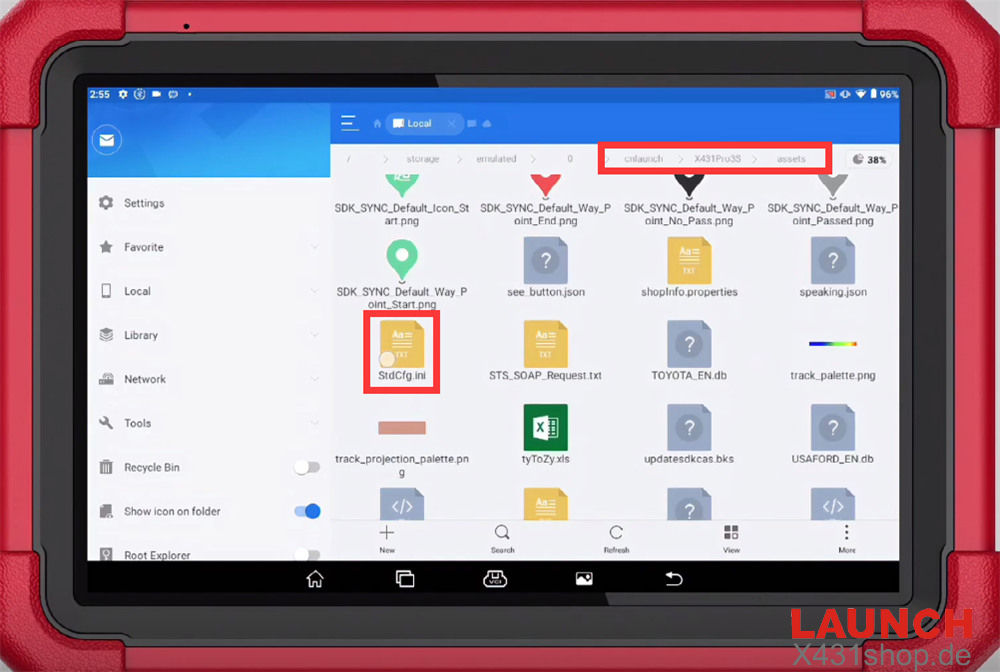
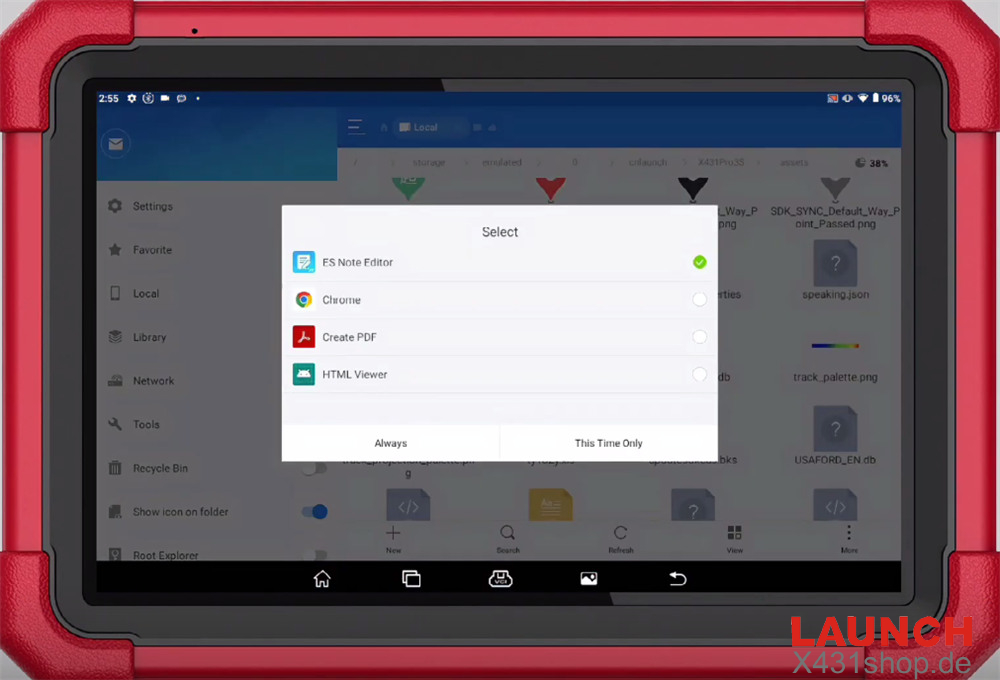
Open the file using ES Note Editor, then select “This Time Only” or “Always”.
Step 5: Modify the Parameters
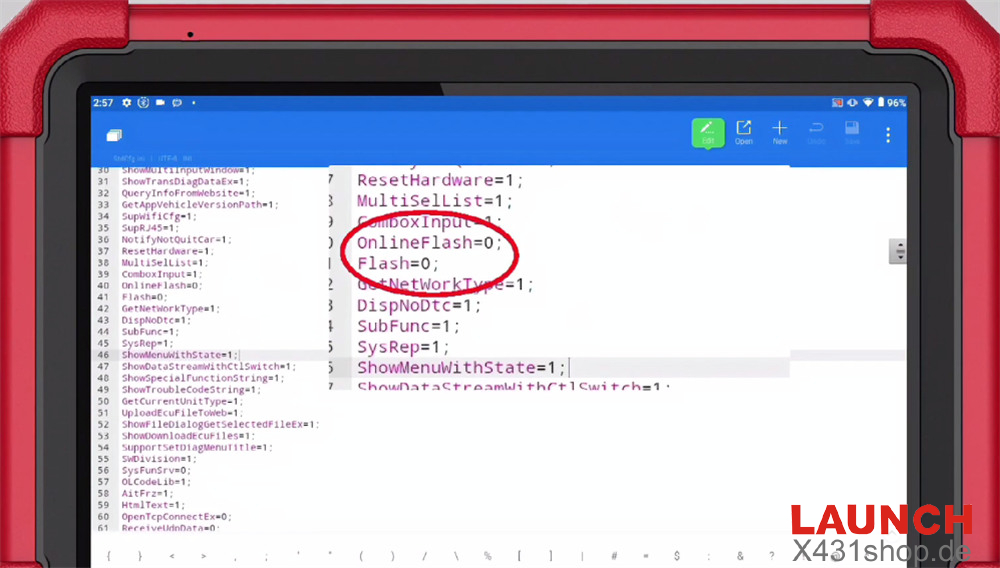
Inside the configuration file, edit the following values:
Change OnlineFlash=0 to OnlineFlash=1
Change Flash=0 to Flash=1
After editing, save the file.
Step 6: Start ECU Flashing
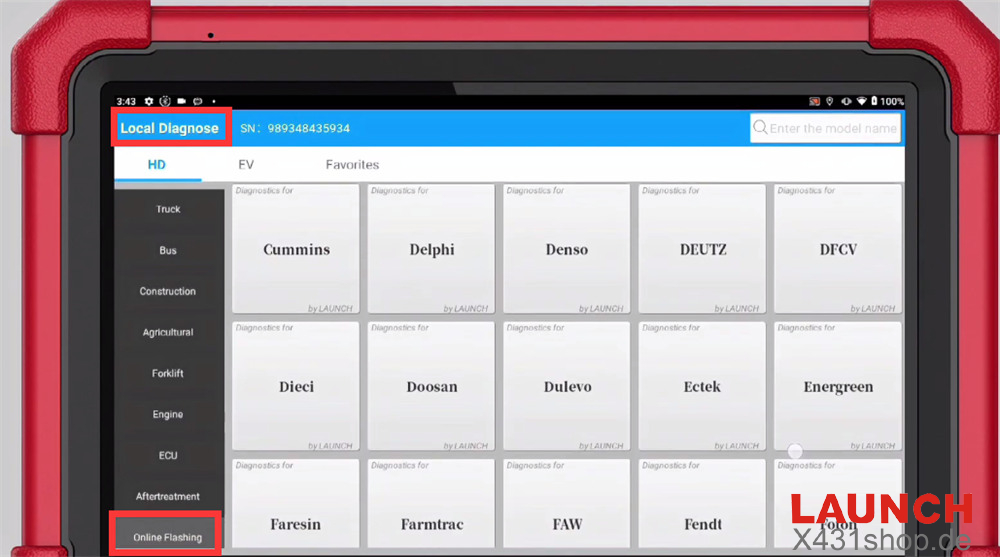
Return to the X431 APP.
Follow this path:
Local Diagnose → Online Flashing
Currently, this function supports around 90 software programs, and more will be added in future updates.
Video Tutorial
You can also watch the full video guide here: