
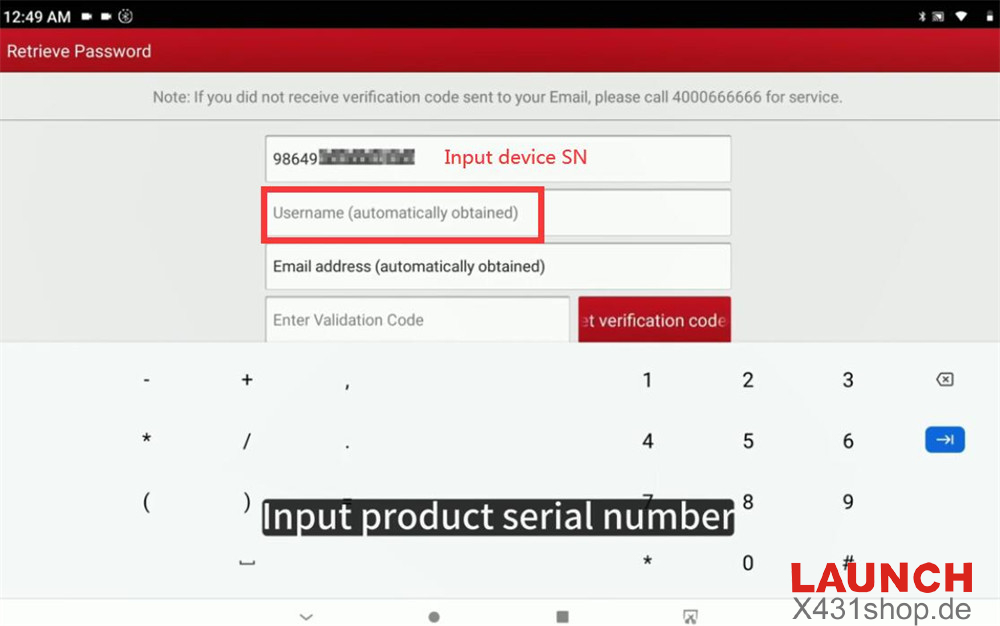
If you’ve forgotten your Launch X431 username, you can easily retrieve it using the “Retrieve Password” function in the X431 App. Simply enter your device’s 12-digit serial number, and the system will automatically display the registered username and associated email address. You can then send a verification code to that email to recover or reset your account.
This method works for most Launch Android-based diagnostic scanners, including:
1. X431 PAD Series:
X431 PAD V (PAD 5), PAD VII (PAD 7)
2. X431 PRO Series:
X431 V / V+
X431 PRO5
X431 PRO3 ACE
X431 PRO3 APEX
X431 PRO STAR
X431 PRO DYNO
X431 PRO TT
X431 PRO ELITE
X431 PROS Elite
X431 PROS V5.0 Elite
X431 PRO3S+ V5.0 Elite
X431 PRO3S+ Smartlink HD
X431 PRO3 V+ Elite
X431 PRO3S+ Elite
3. X431 IMMO Series
X431 IMMO Plus
X431 IMMO Elite
4. Launch Creader Series
CRP919X, CRP919E, CRP919XBT, CRP919EBT, Creader Elite 2.0, CRP123X Elite, CRP123E Elite
and many other Launch X431 tablets.
Step-by-Step Guide to Find Your Username
1. Open the X431 App on your diagnostic tool.
2. Tap the “Login” button (usually located in the upper right corner).
3. Select the “Retrieve Password” or “Forgot Password” option.
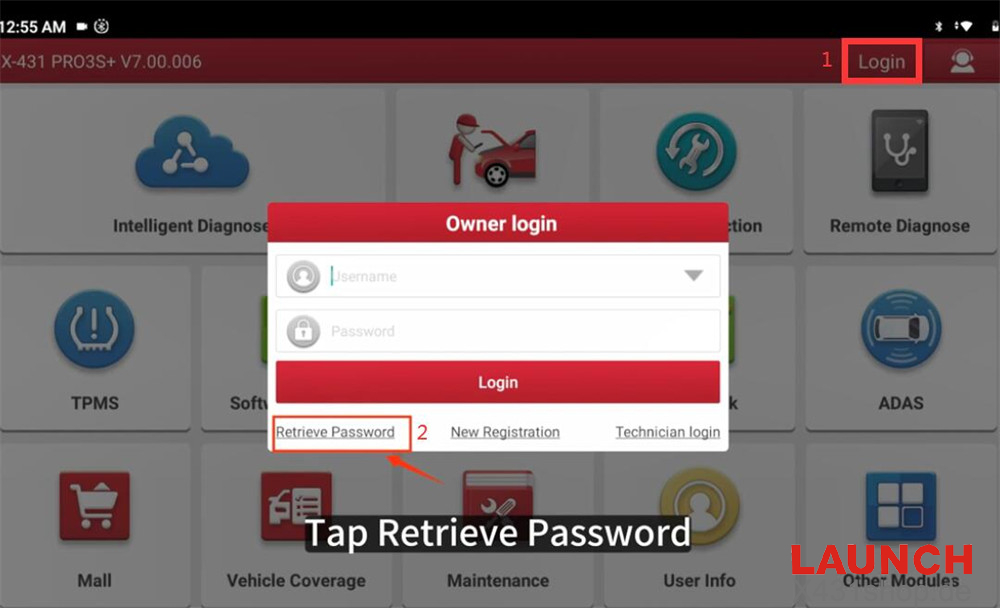
4. Enter the 12-digit serial number (SN) of your device (found on the back of the scanner).
5. The registered username and linked email address will automatically appear on screen.
6. To proceed with password recovery, click “Get Verification Code by Email,” check your inbox for the code, and enter it to reset your password if needed.
If You Don’t Know Your SN:
Contact your Launch dealer or supplier with screenshots of your device’s order number or the back of the scanner.
Read also:
How to reset password and change bound email on Launch X431 tablet?
http://blog.x431shop.de/how-to-change-the-email-address-bound-to-your-launch-diagnostic-tool-account/