


If your Launch X431 PRO3S+ Smartlink HD displays an “Insufficient storage space” warning immediately after downloading software updates, you can free up internal storage using either of the following methods.
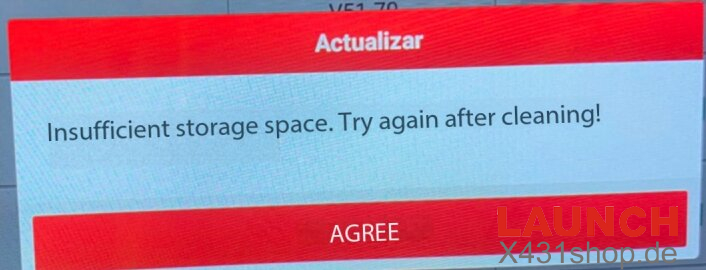
Why Does the Storage Warning Appear?
During software updates, the tablet may retain previous installation packages and temporary cache files. Over time, these files can occupy a large amount of internal storage and trigger the insufficient storage warning.
Solution 1 Delete the cnlaunch Folder
This is the recommended method for clearing leftover update files while keeping your existing diagnostic settings.
- Open File Manager on the tablet.
- Go to the internal storage directory and find the cnlaunch folder.
- Delete the cnlaunch folder.
- Restart Launch X431 tablet.
- Download only the vehicle software packages you currently need.
Solution 2 Perform a Factory Reset
If deleting the folder does not provide enough free space, you can restore the tablet to its factory settings.
- Open Settings > System > Reset Options.
- Select Erase all data (factory reset).
- Confirm the reset and wait for the tablet to restart.
- Log back into your Launch account.
- Download the required vehicle software packages again.
Important: A factory reset erases data from the device, so make sure any important information is backed up before proceeding.
How to Avoid Storage Problems
To prevent the storage from filling up again, avoid downloading every available vehicle software package at once.
Instead, install only the vehicle brands you regularly work with. This leaves more internal storage available for future software updates and helps keep the tablet running smoothly.
Tech Support:
E-Mail: sales@X431shop.de
Business WhatsApp: +86 17782330462
Tel: 0086-17782330462