
If you’re experiencing communication errors or unstable connections with your Launch SmartLink C V2.0, a firmware repair is often the solution. You have three options to fix it: repair via OBD cable, via network cable, or using an X431 tablet (e.g., X431 PRO3 LINK HD / X431 V+ SmartLink HD). Follow the steps below to bring your connector back to top shape.
Method 1: Repair Firmware on SmartLink C via OBD Cable
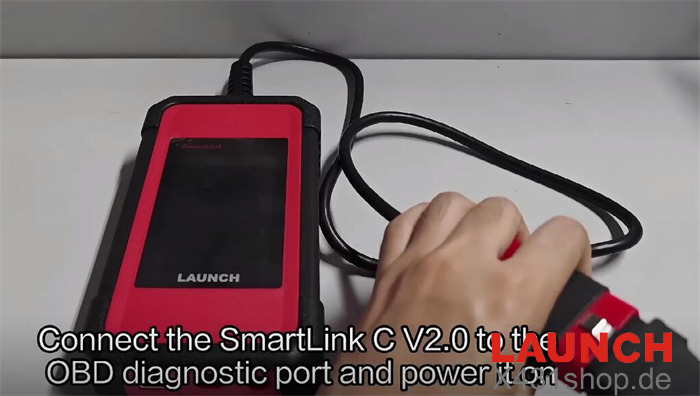
Connect SmartLink C V2.0 to the vehicle’s OBD diagnostic port and power it on.
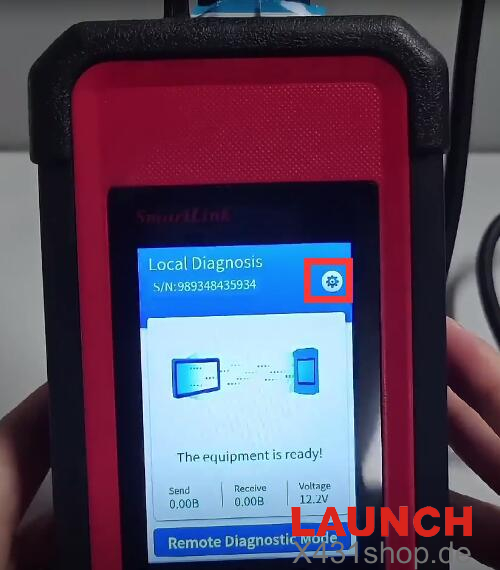
Wait for the device to boot up, then tap the Settings icon in the upper right corner.
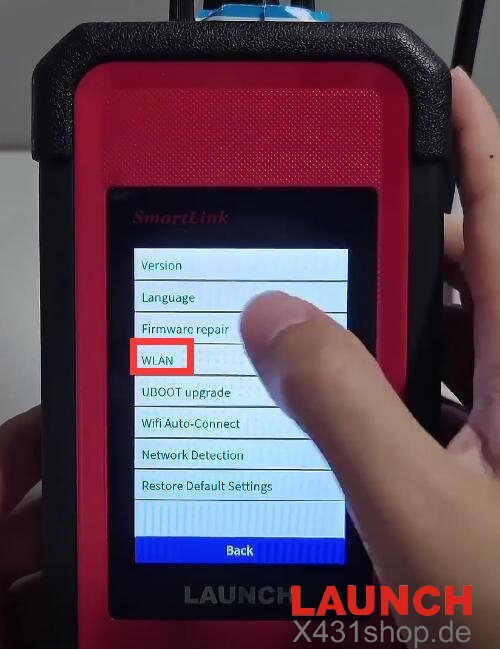
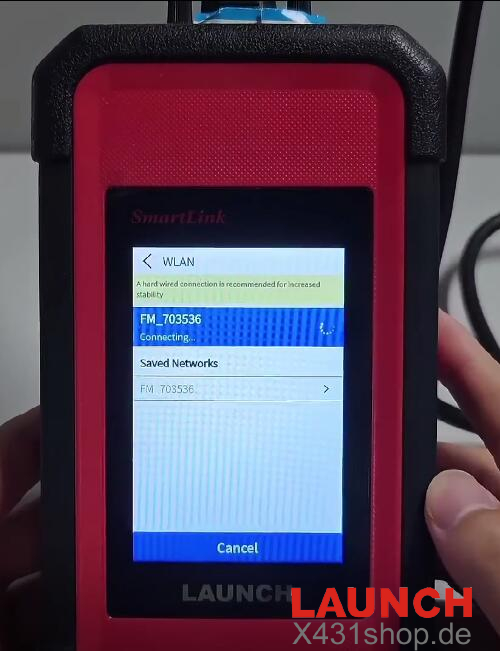
Select WLAN and connect to a stable Wi-Fi network.
Navigate to Firmware repair.
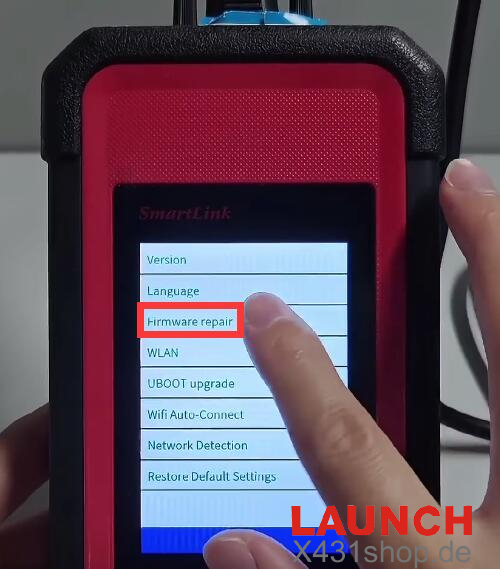
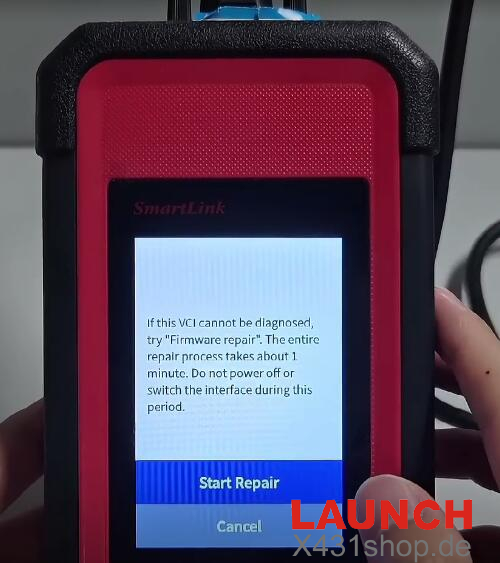
A prompt will appear:
“If this VCI cannot be diagnosed, try ‘Firmware repair’. The entire repair process takes about 1 minute. Do not power off or switch the interface during this period.”
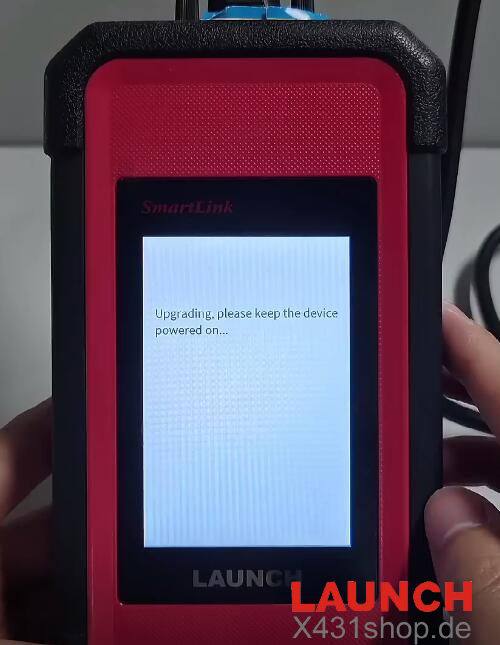
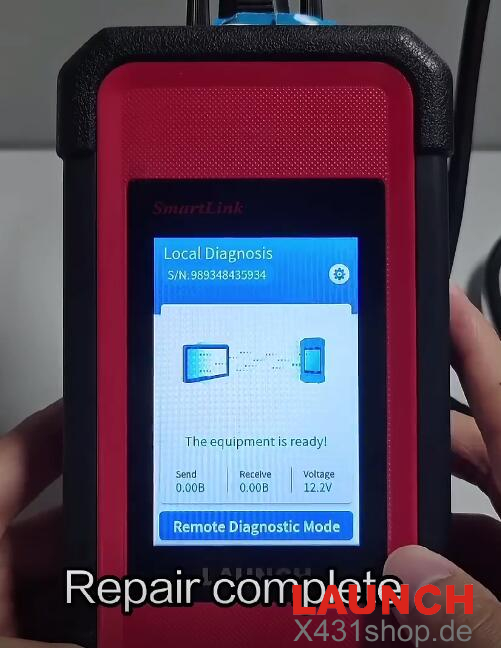
Click Start Repair and wait for the upgrade process to complete.
Method 2: Repair Firmware on SmartLink C via Network Cable
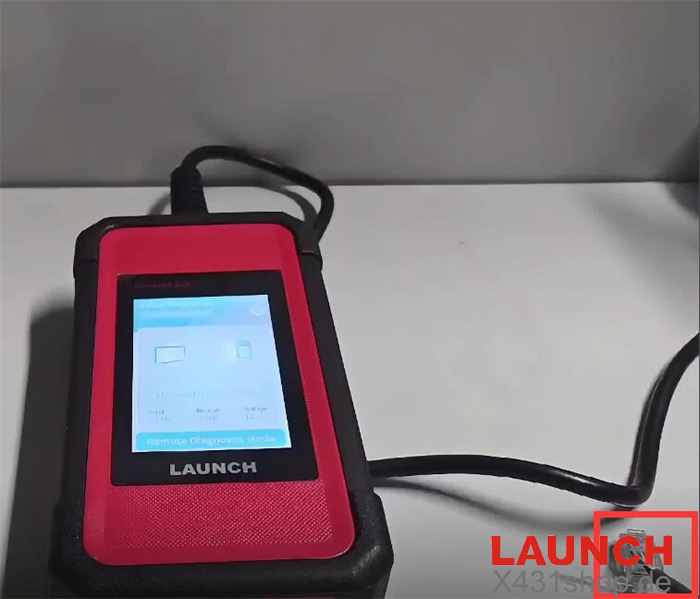
Connect a network cable to SmartLink C for a wired internet connection.
Go to Settings → Firmware repair and follow the on-screen instructions.
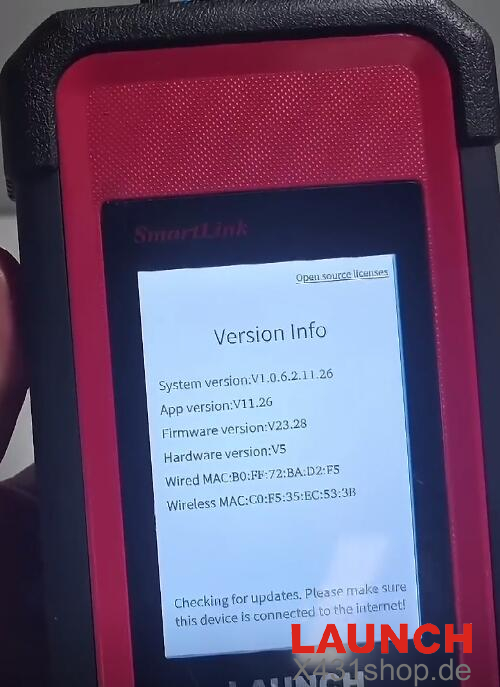
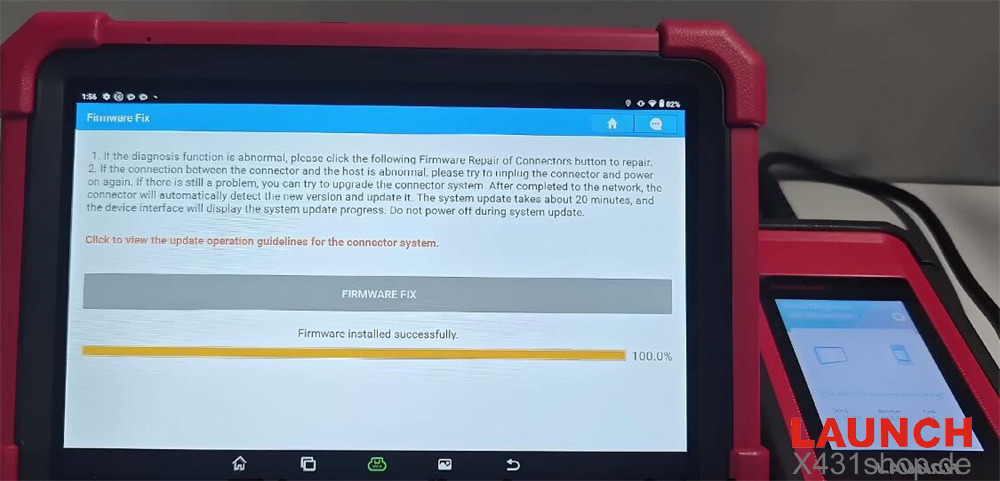
Method 3: Fix Connector Firmware by Launch X431 V+ SmartLink HD
Establish a Bluetooth connection between SmartLink C V2.0 and X431 V+ SmartLink HD diagnostic tool.
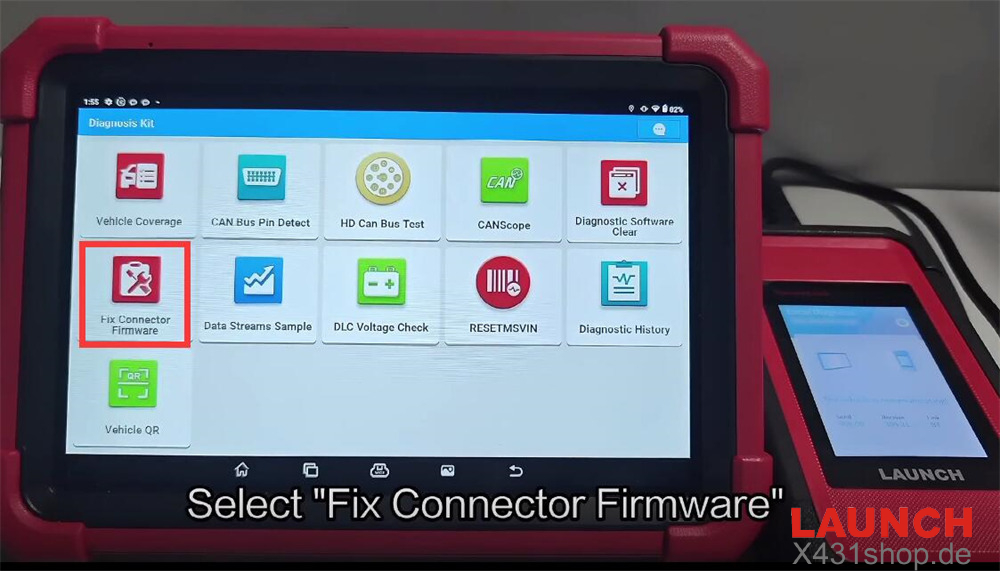
On X431 V+ main menu, select Diagnosis Kit.
Choose Fix Connector Firmware.
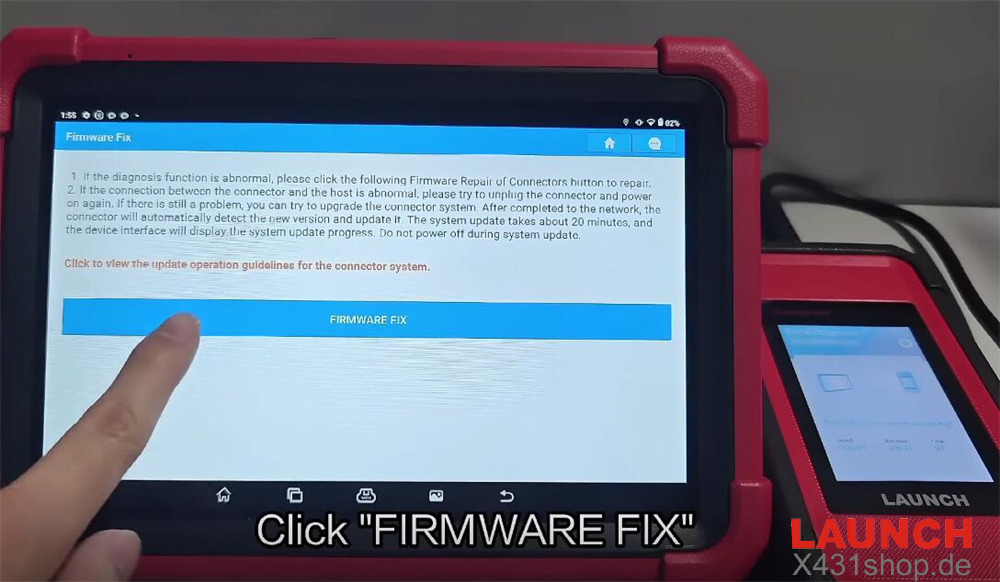
Tap “FIRMWARE FIX” to initiate the process.
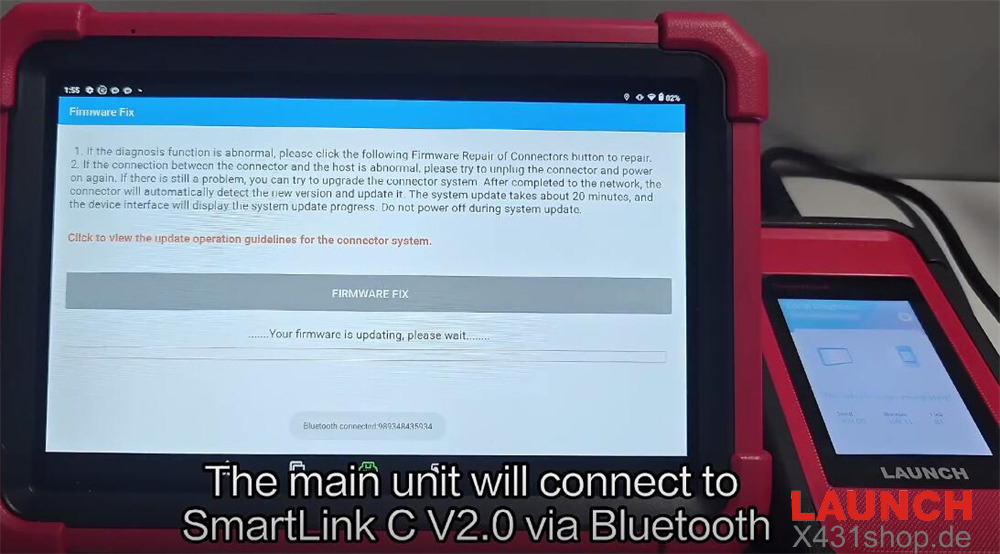
X-431 V+ SmartLink HD will connect to SmartLink C V2 via Bluetooth.
The connector will automatically detect the latest firmware version and begin updating.
Wait while the system update progresses. The device interface will display the update status.
Important: Do not power off the device during the update.
Tech support:
E-Mail: sales@X431shop.de
Business WhatsApp: +86 17782330462
Tel: 0086-17782330462